Insight’s Reseller Admin Portal (RAP)
User Guide
13 – Microsoft Manage Quantities
How to manage quantities for Microsoft CSP:
RAP is your platform to get the licenses you need. Manage quantities of existing subscriptions can be done using the following method:
When new Microsoft 365 seat-based licenses are ordered – either by adding to an existing subscription or through the purchase of a new subscription, the number of licenses may be reduced in the first 168 hours only, with a prorated refund available.
After Microsoft closes the 168-hour window, Microsoft will not allow cancellation or license count reduction until the end of the subscription term. You can increase your license count at any time mid-term, and each addition of licenses will have its own 168-hour window for license reductions (of the additional licenses only).
You can schedule a reduction mid-term through the Manage renewal functionality and the quantity reduction will take place at the next renewal.
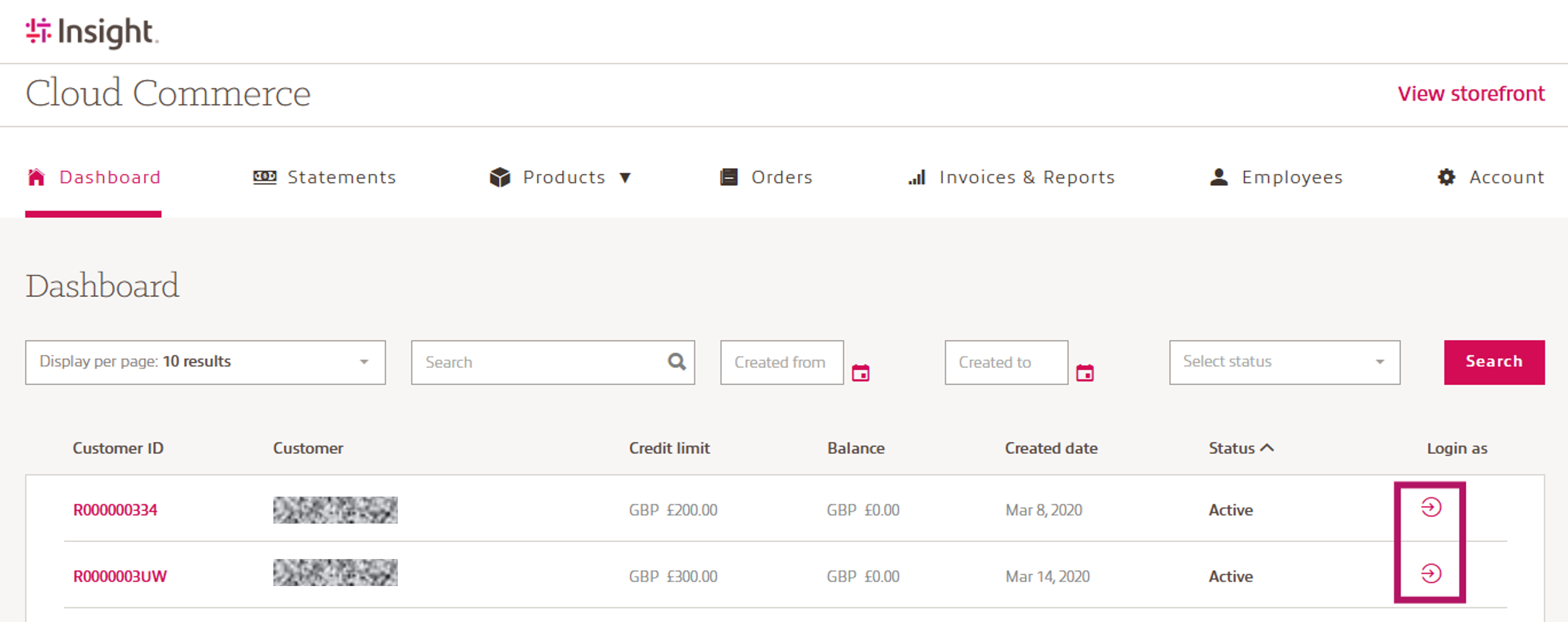
To use the Manage quantity functionality, use the ‘login as’ button from the ‘Dashboard’ menu. This logs you into the end-customer’s account on the White label via ASM (Assisted Service Mode).
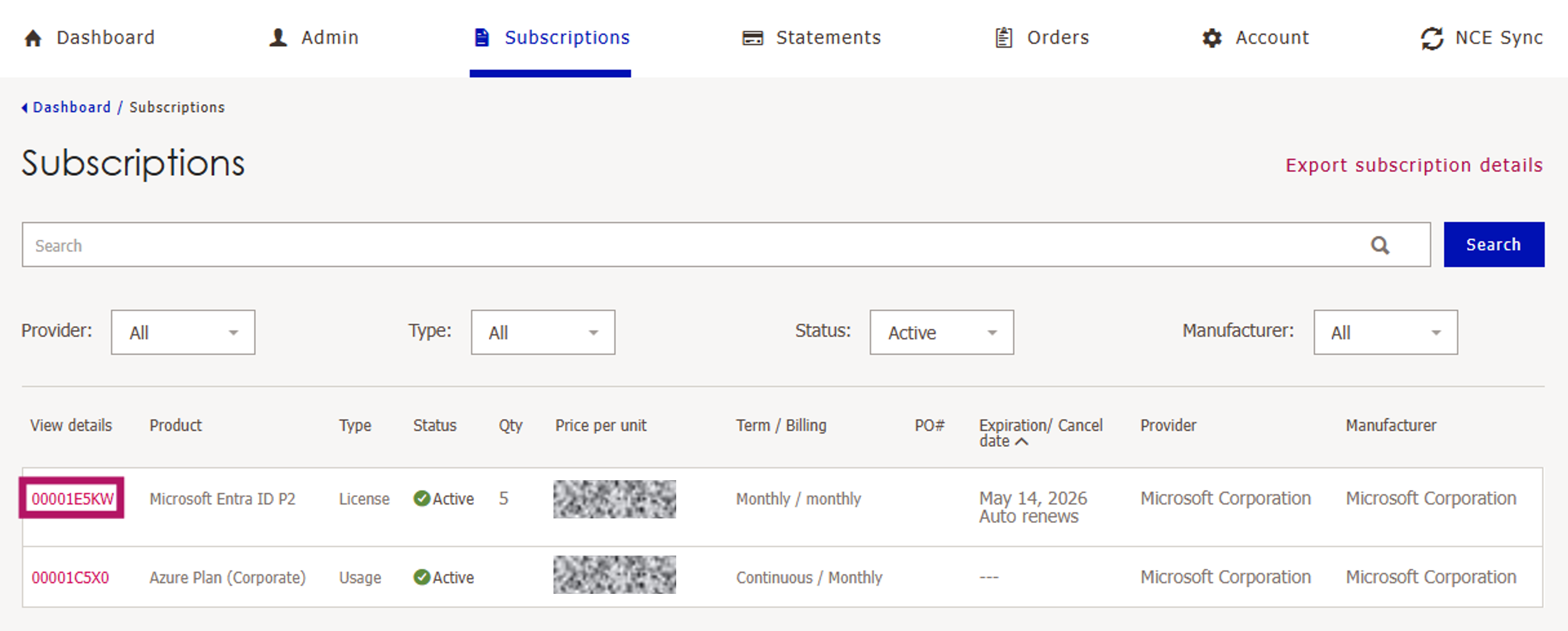
Navigate to the subscription list page and click on the subscription you want to manage.
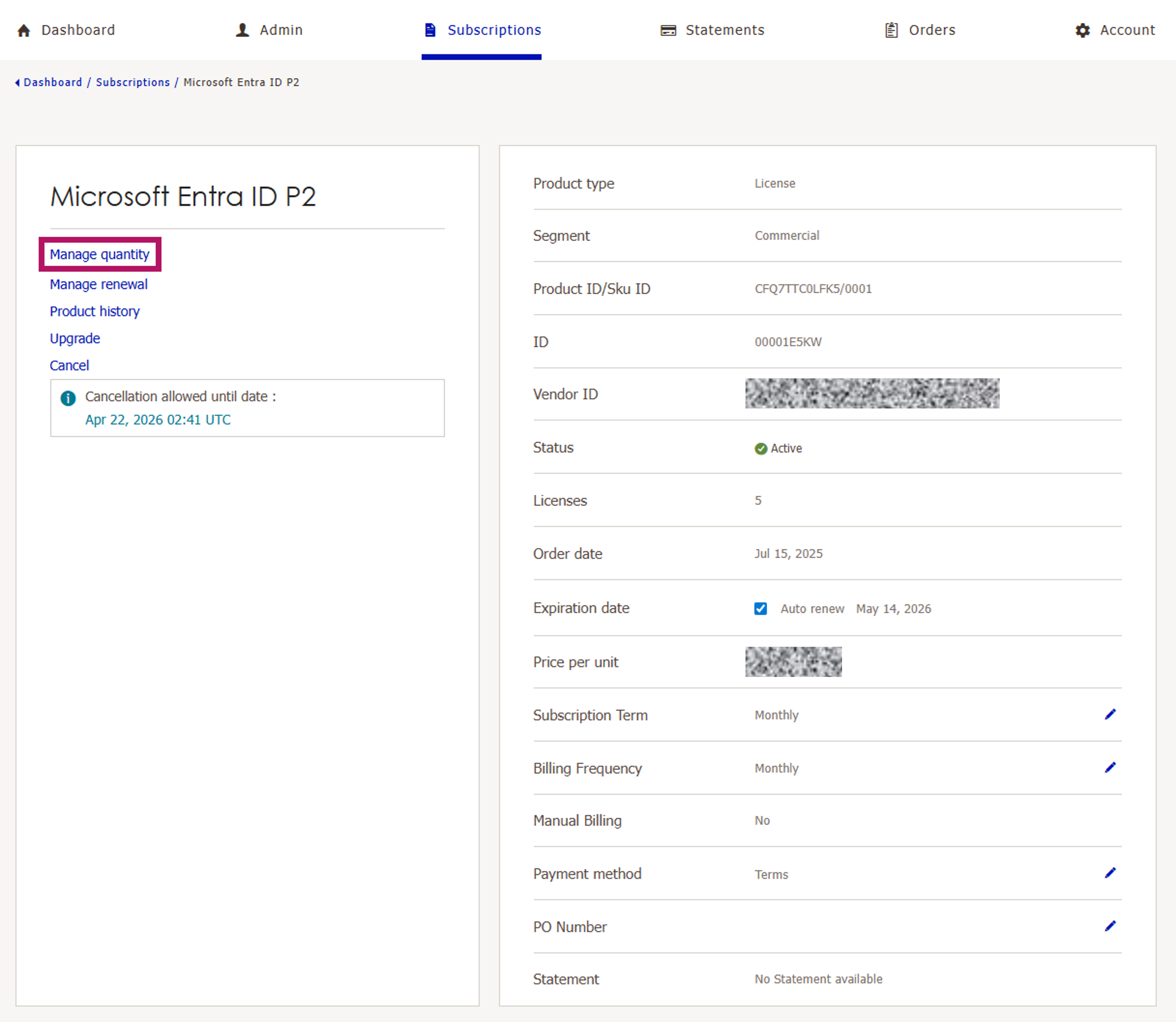
On the subscription detail page, you will see a link on the left called Manage quantity. This will present a spinner while a call to Microsoft will bring back the information on what quantity modifications can be made for your subscription.
- You will see the current license quantity and current per unit price displayed.
- To add licenses to the subscription, type the number of licenses you want to add in the box and click Update.
- The new total license quantity will be displayed.
- Pricing details for any additional licenses will be displayed.
Please note that this pricing is valid for the full term. The per‑unit price will be prorated based on the remaining duration of the term.
If you have any licenses that are available for reduction, the number of licenses that can be reduced are displayed with Date & UTC time stamp for ‘allowed until’ closes.
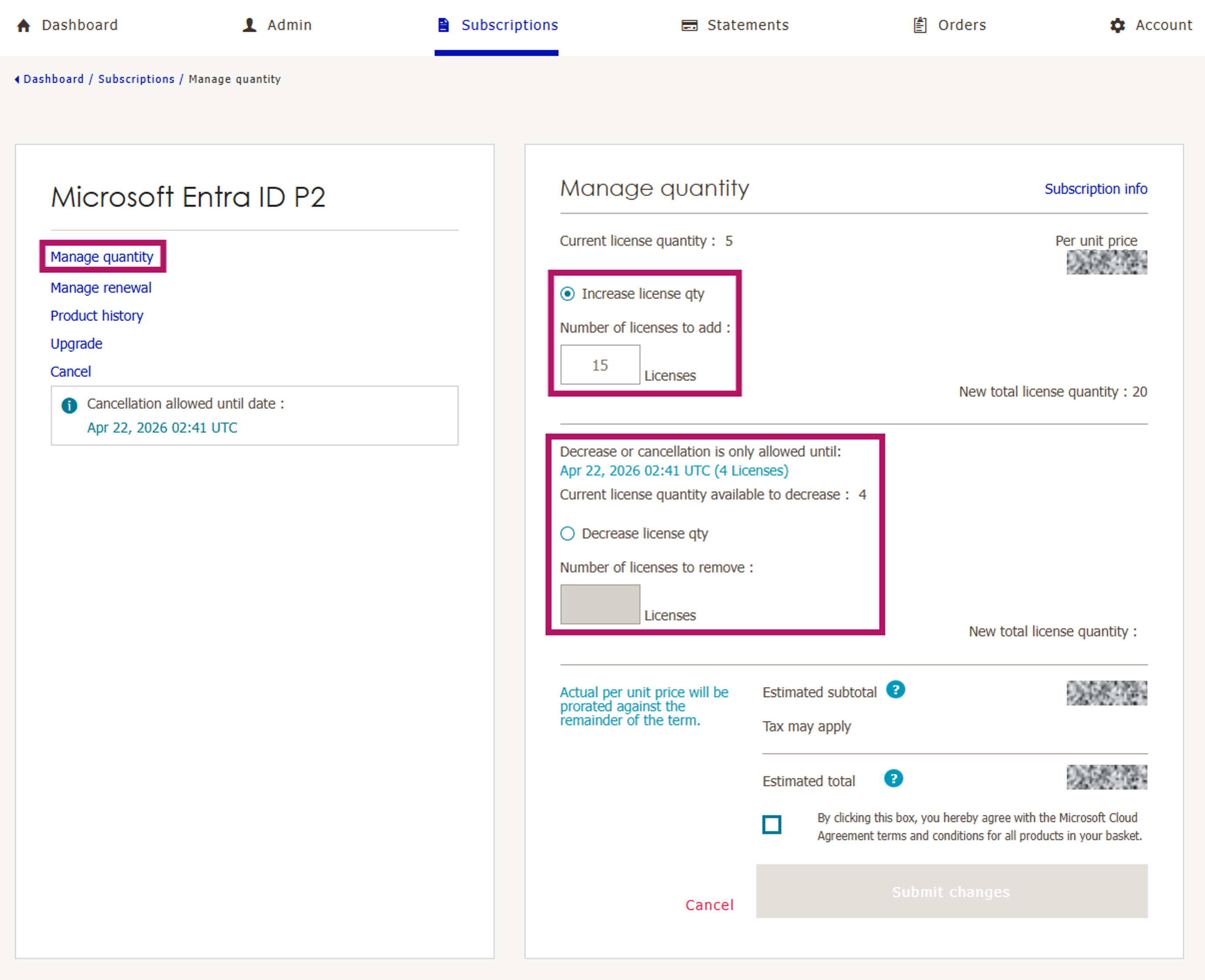
- Each addition to the license count has its own 168-hour window. They will each be displayed with their own date/time stamp and modifiable license quantity.
- If there is only one license in the subscription, please use Cancel. Microsoft does not allow a subscription to remain active with qty 0 licenses.
Accept the Terms & Conditions (T&C) and click Submit changes to complete the quantity change request.
NOTE : A warning message will pop up when attempting to make an immediate change to the subscription (e.g. quantity increase, term/billing frequency, upgrade, etc.) while the subscription has scheduled changes at renewal.
By Microsoft design, ALL scheduled changes are deleted when an immediate change is completed. If desired, any necessary scheduled changes will need to be re-entered by you after the immediate change is completed.
Microsoft does not allow an increase in quantity for Software Subscriptions or Perpetual products. If you need additional quantities, you must complete a new purchase.