Insight’s Reseller Admin Portal (RAP)
User Guide
5-2 – Subscription List Page
Subcription List Page
When you log into your end-customer in RAP, you will land on the Dashboard page. Use the top menu to navigate to the Subscriptions list page. This is the main page from which you will be able to view and manage your end-customers Cloud Care purchases.
The Subscriptions table for Microsoft 365-seat based & Software Subscriptions is at the top of the page, and if applicable, the Perpetual Software table is at the bottom. For ease of navigation, clicking Perpetual Software in the header will bring you directly down to the Perpetual Software table.
Use the filter options to only display products from selected cloud providers, subscription type, status or the manufacturer.
On the Subscriptions list page, you will see a snapshot of the following information for your subscriptions (from left to right):
- Insight Sub ID (below View details)
- Product Name
- Type: License, Consumption, Perpetual, Software Subscription, Marketplace, etc.
- Subscription Status Active, Provisioning, Change Requested, Delayed, Expired, Deleted
- Current quantity of licenses
- Price per unit / Currency
- Subscription Term / Billing Frequency
- PO Number (if applicable)
- Auto renewal date / Expiration date: A ‘clock’ icon indicates IF there is a scheduled change set for the subscription, which will automatically be applied at renewal.
- Provider
- Manufacturer
- Action required (see below)
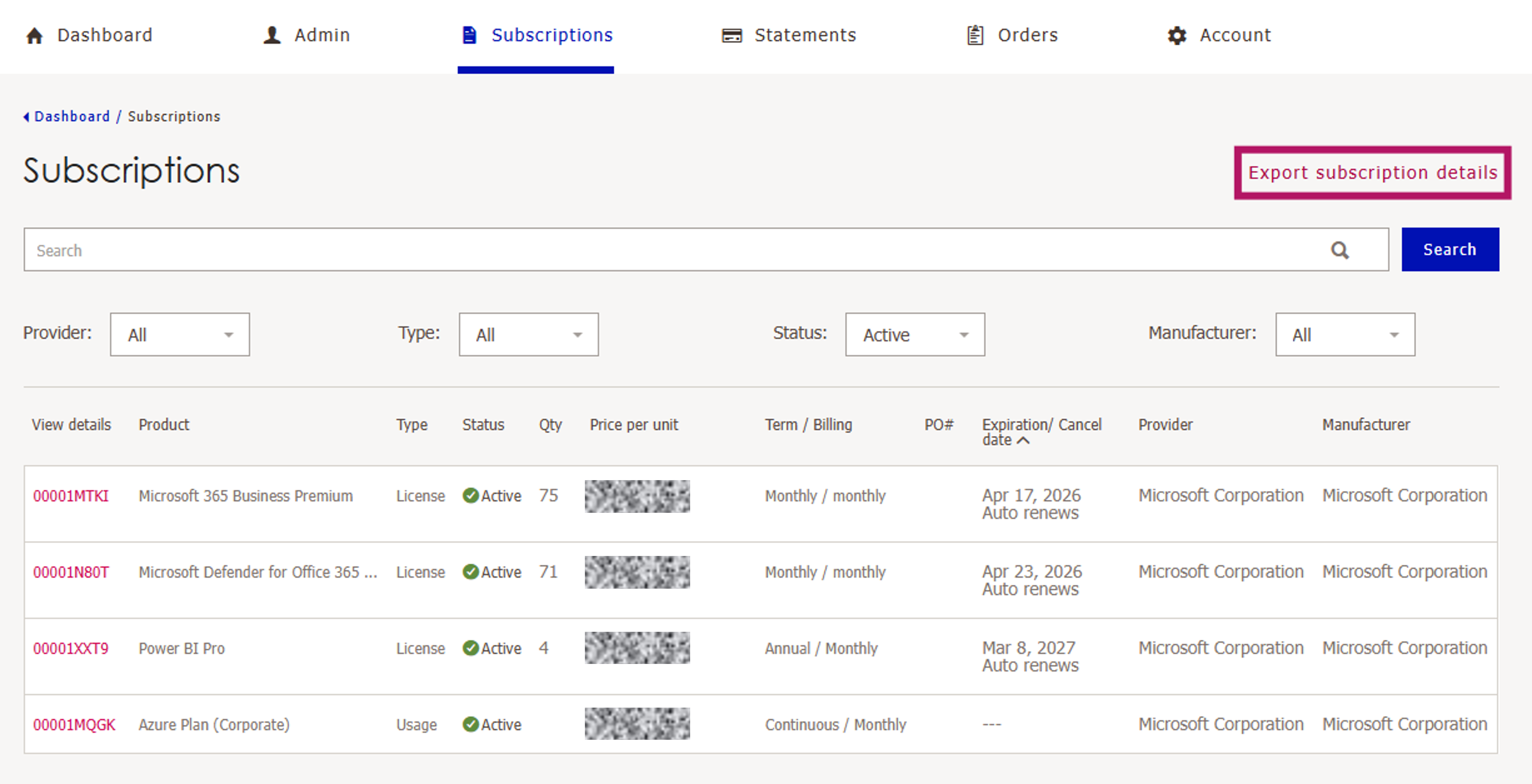
The entire subscription row is clickable and clicking anywhere within the line will take you to the Subscription / Product detail page where you can view the details of the specific product and if possible, make any desired changes.
The default view will show all Active subscriptions for all product Types (with the subscriptions arranged in the order of their renewal / expiration dates, from oldest to newest date), so that you can keep an eye on which subscription is going to auto-renew (if applicable) or expire the soonest.
You can also choose from the Status drop down filter to view All or only Cancelled subscriptions.
The filters work together with the search bar to return your desired results. Furthermore, if you need to navigate away from the Subscription list to another page in the platform, the search and filtering criteria will be saved, so you don't have to start over. You can click Clear search at any time to return to the default view.
You can also export the full Subscriptions list table to Excel, using the Export Subscription details button.
Export also includes:
- Vendor Subscription ID
- Creation date
- Cancellation allowed until date