Insight's Cloud Commerce Platform (CCx) User Guide
8 - Account Page
Account Page
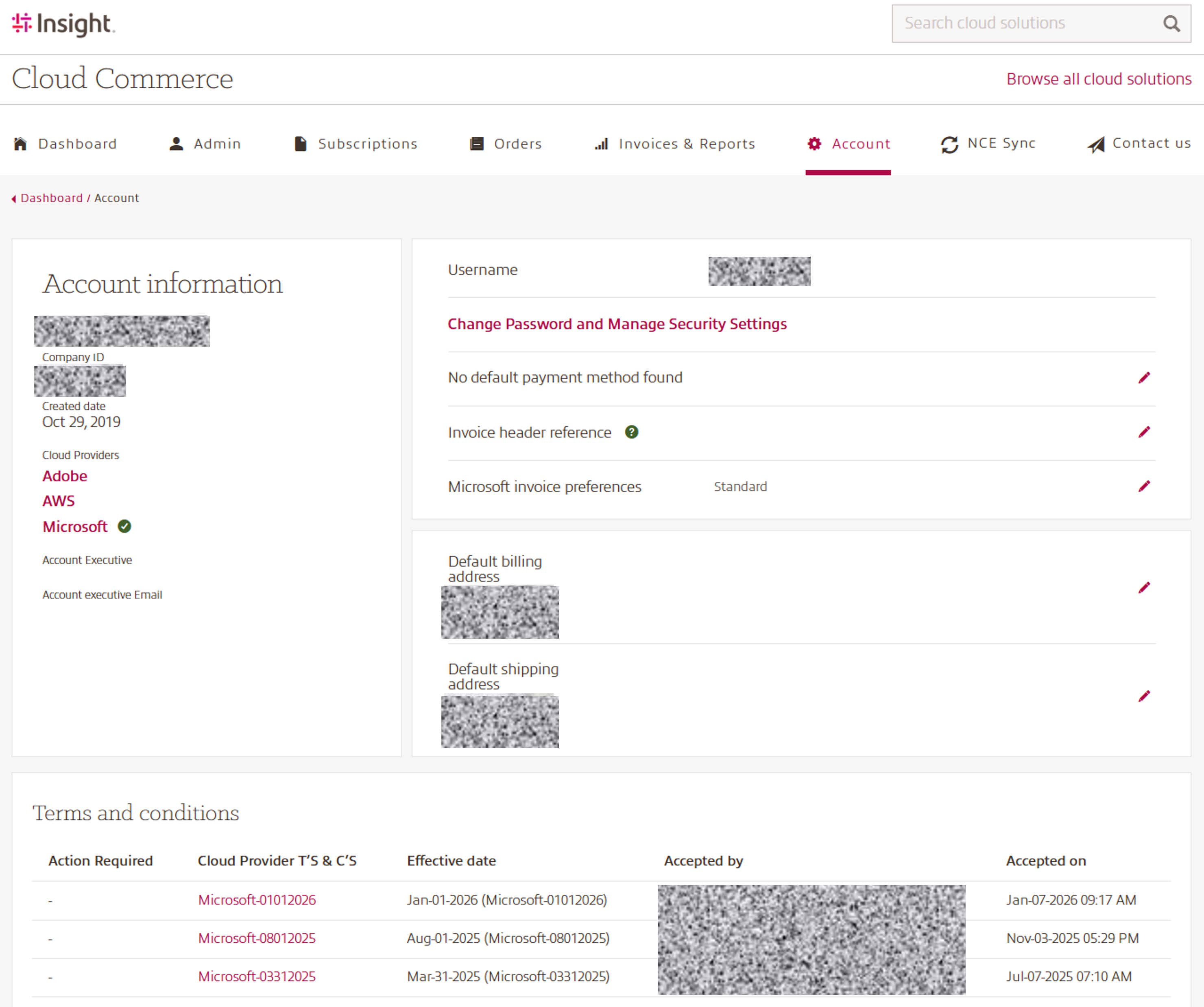
When you log into CCx, you will land on the Dashboard page. Use the top menu to navigate to the Account list page.
This page is your central location to view your Account information.
The Account page includes the specifics of your Insight Cloud Care account after you onboarded has ben completed.
The details displayed on the page include:
- Customer Name: Your Insight company name
- Company ID: Your Insight sold-to account number
- Cloud Providers (Adobe, AWS & Microsoft): see more info at the end of this document
- Account Executive
- Account Executive Email address
- Username: Your users email address
- Change password and Manage Security Settings: for more information visit our CCx User Guide 2 – Identity & Security
- Default payment method
- Invoice header information
- Microsoft invoice preferences:
Standard: Invoices will remain as they are today.
By Purchase Order Number: Each different Purchase Order Number will generate its own Invoice. Subscriptions without a Purchase Order Number will be split on to their own invoice. You can update the Purchase Order Number in the Subscription Detail Page.
Split Azure and 365 to two separate invoices: Two invoices will be generated, one containing all Azure consumption, Reservations, Marketplace, etc. and one containing all 365 license subscriptions (including Perpetual, Software Subscriptions, etc.).
Note: If you are already using split invoicing by billing or shipping address, those separate invoices will remain in place and will be in addition to the options above. Any change made to invoice preferences after the 10th of the month may not be available until the following billing cycle.
- Default billing address
- Default shipping address
- Terms and Conditions: This section provides information on current and recently published Cloud Provider T&Cs, including their effective date, accepted‑by information, and the date of acceptance. If new Cloud Provider T&Cs have been published, the Action Required section will be highlighted and a banner message will “Cloud Provider Product Terms & Condition have been updated. Action now” appear.
In this case, the new T&Cs must be reviewed and accepted before you can make new purchases or changes to existing subscriptions.
Cloud Providers information:
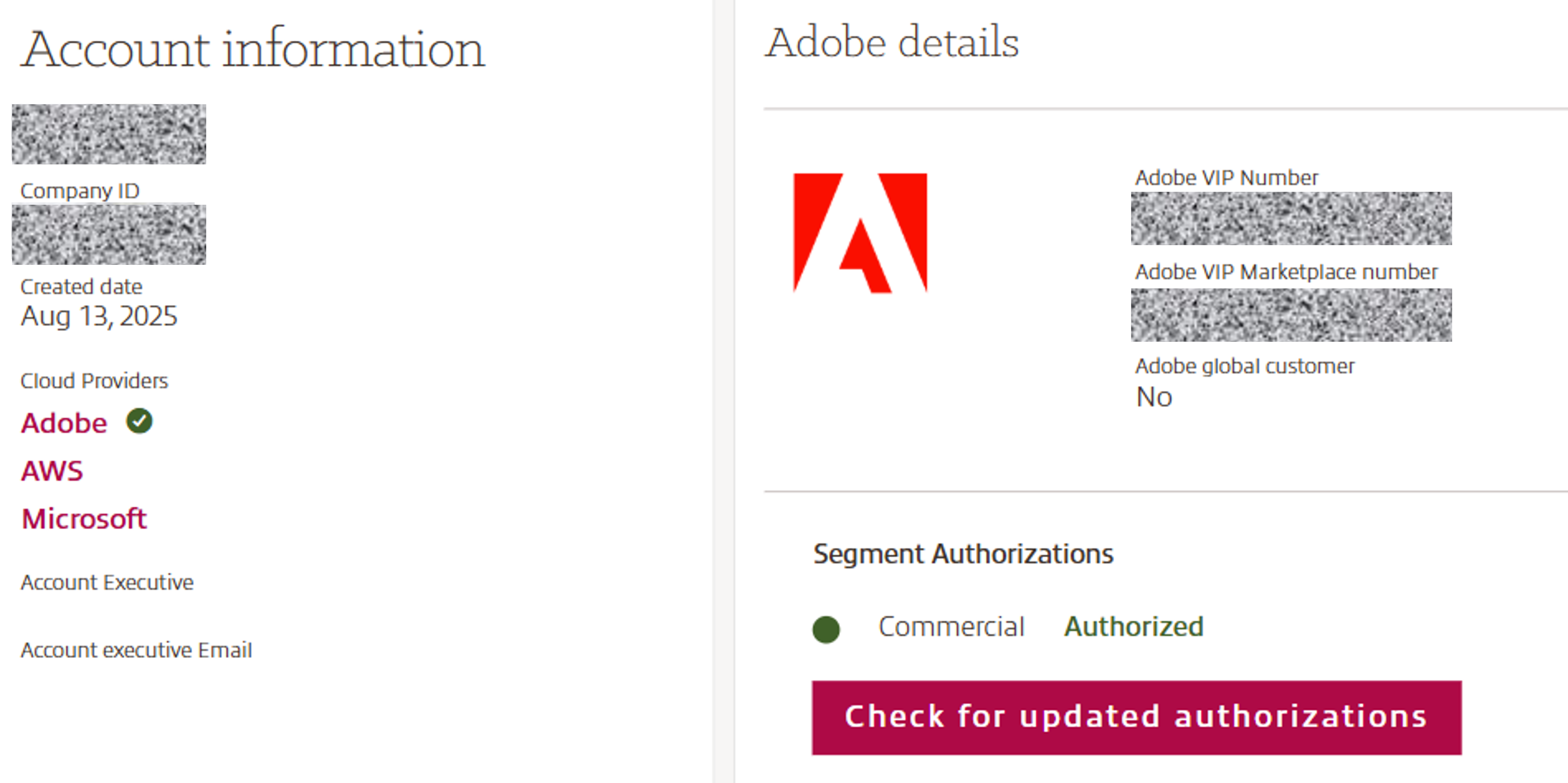
The green checkmark marks onboarded cloud providers with detailed information on each Cloud Provider available:
Adobe:
- Adobe VIP number
- Adobe VIP Marketplace number
- Global Customer information
- Segment Authorizations (Commercial, Education or Non-Profit)
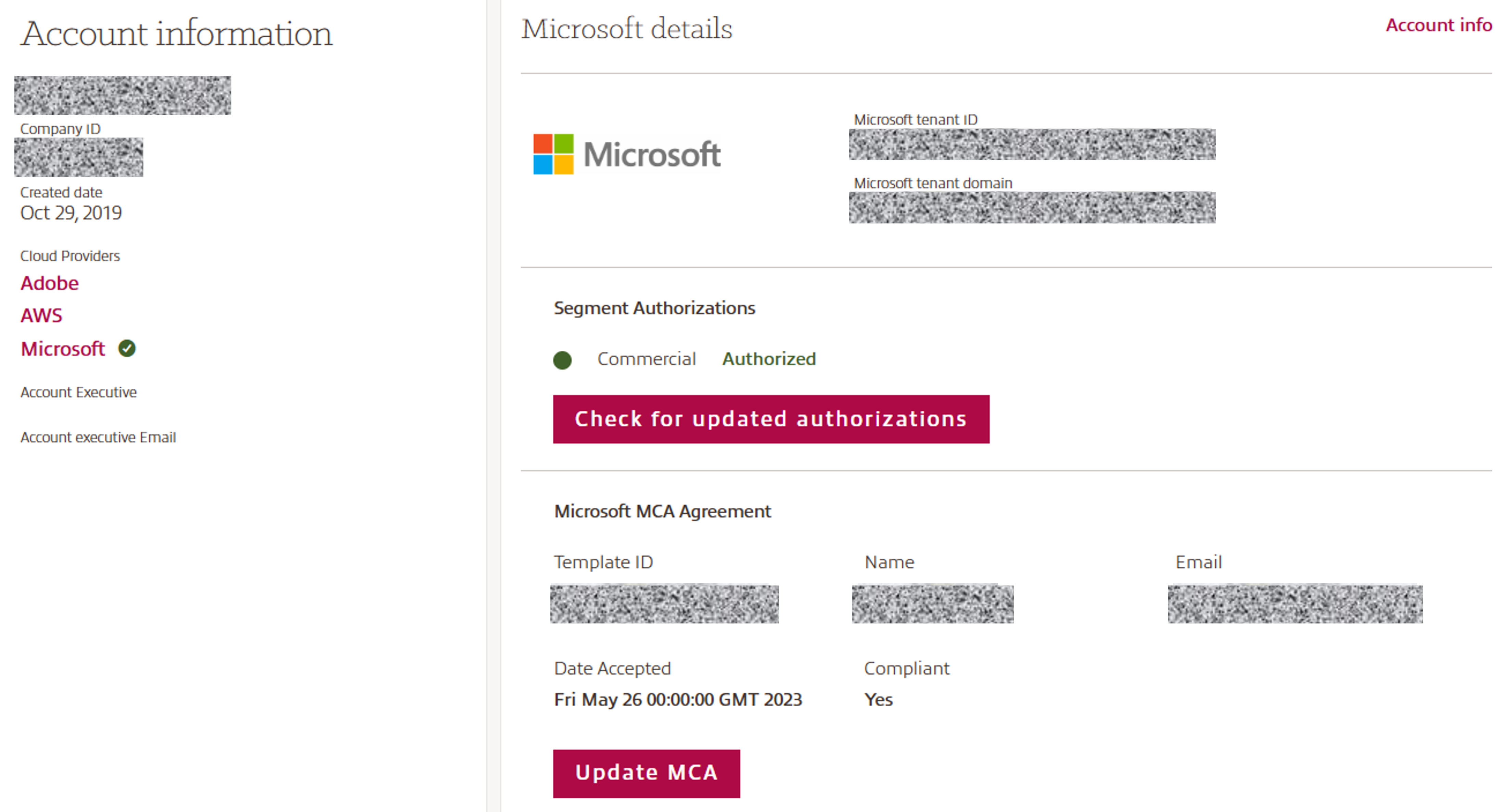
Microsoft:
- Microsoft tenant ID
- Microsoft tenant domain
- Segment Authorization (Commercial, Education or Non-Profit)
- Microsoft Customer Agreement (MCA) status:
Plese note: To purchase or request a subsctiption change, Microsoft requires an up to date acceptance of the Microsoft Customer Agreement(MCA).
In case your MCA must be updated, please follow the instructions within CCx, or update your MCA status.
- GDAP Relationship status:
For more information please visit our GDAP Direct Client User Guide
AWS (Amazon Web Services): will be added soon
For additional Cloud Provider onboarding, please contact your Cloud Success Manager