Insight's Cloud Commerce Platform (CCx) User Guide
10-2 - Adobe How to Purchase
How to purchase Adobe VIP marketplace products:
CCx is your platform to get the licenses you need. New licenses purchases can be made using the following ways:
- Purchase a new product:
Adding a new product that has not been purchased on your Adobe VIP contract before, will add the new product to your Adobe VIP contract / subscription. - Increase the license count on your existing product purchase:
If you already have the needed product available in your Adobe VIP contract, you can increase the quantity of licenses as detailed in the Adobe Manage quantity guide page. The licenses added to this contract take on the attributes of your Adobe VIP contract including the anniversary date.
How to purchase a new product:
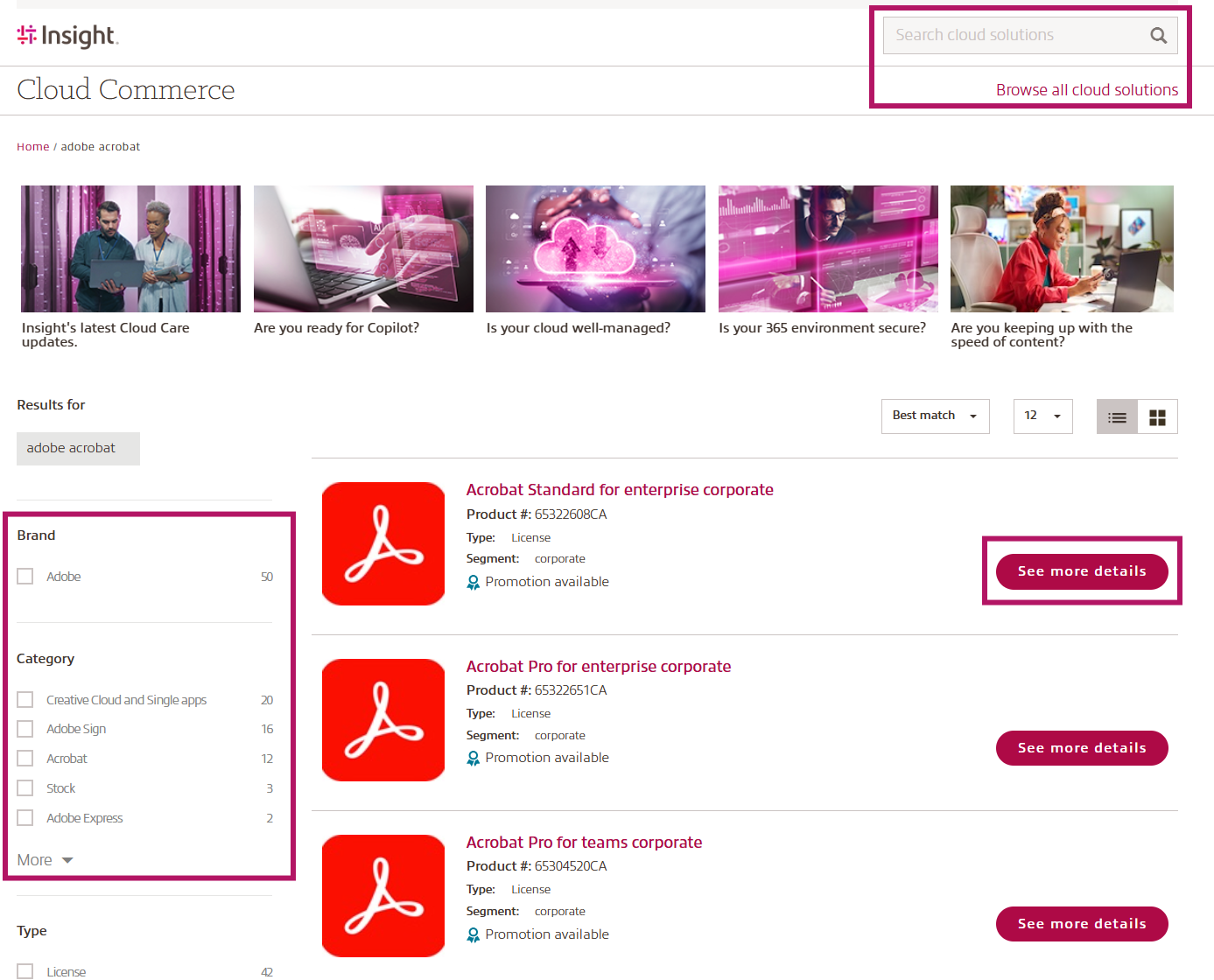
- Find the product you need by either typing the product description/key words into the Search cloud solutions field or selecting Browse all cloud solutions to view the product catalog. Use the filter option in the product catalog to find what you need.
- Then click See more details to be taken to the product detailed page.
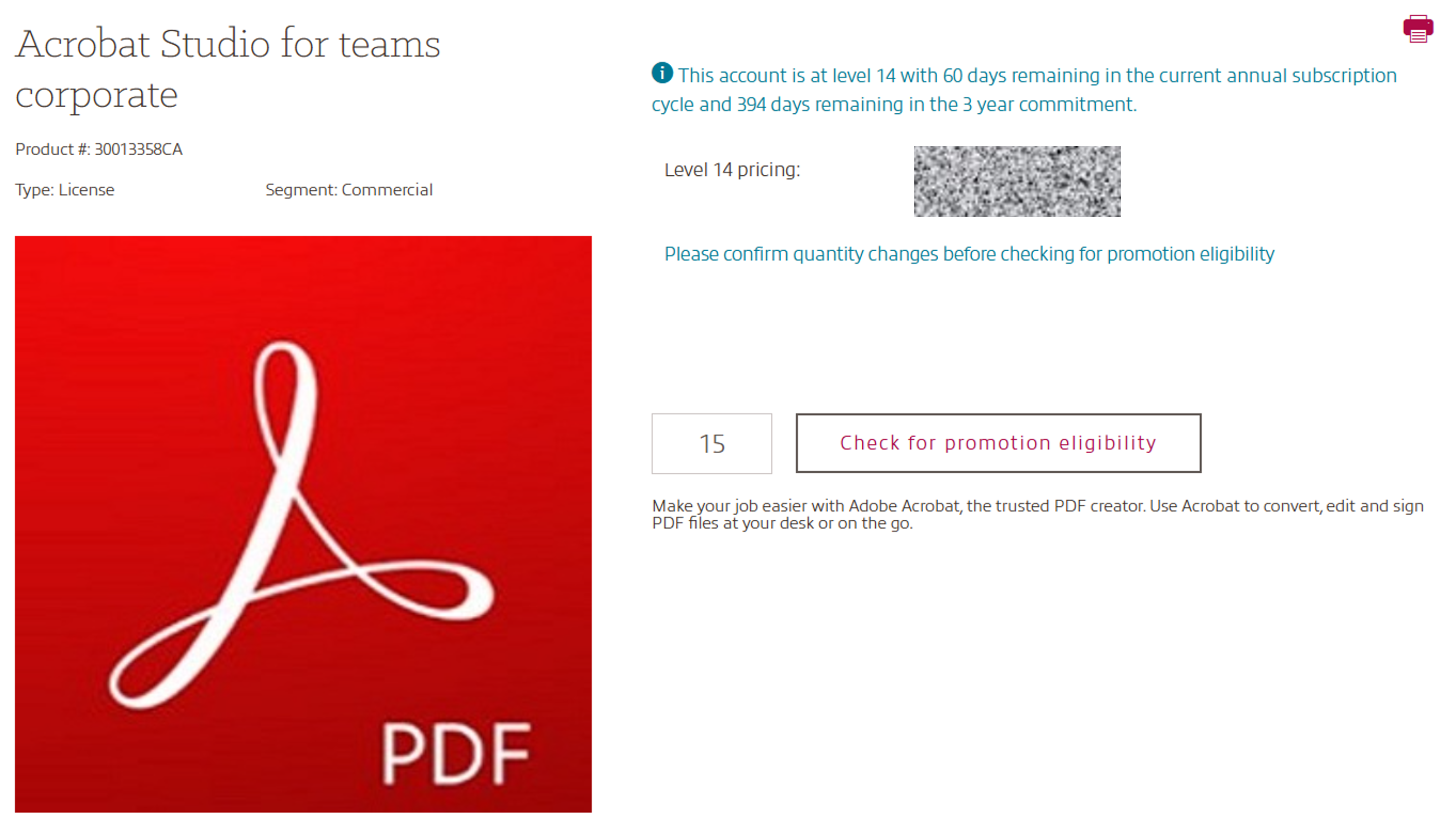
- Check the details on your Adobe VIP contract, add the quantity needed.
Available Adobe promotions will be displayed below the product information.Check for promotion eligibility will validate the promotion eligibility with the Cloud provider and display applied promotions after you have added the product into the basket.
If no promotion is available, simply add the product into the basket.
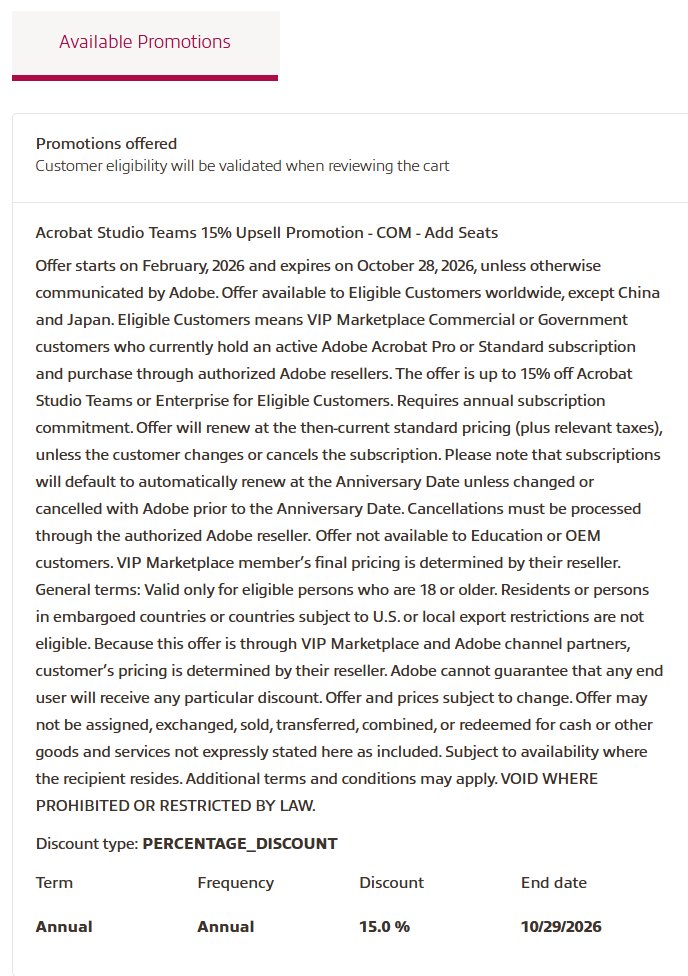
NOTE: Promotion eligibility is determined by Adobe when the product is added to cart. If Adobe determines that you meet the eligibility requirements for this promotion, you will see a strikethrough on the unit price, and a Promotion applied message with the new unit price in the cart. Due to Adobe’s timebound nature of promotional eligibility, promotional pricing cannot be saved into a quote PDF and will only be seen while the product is in the cart.
You will also see messaging to reflect this in the pdf quote itself. - When all products are added to cart, please review your selections to ensure quantities are as desired.
Add the deployment country if necesarry.
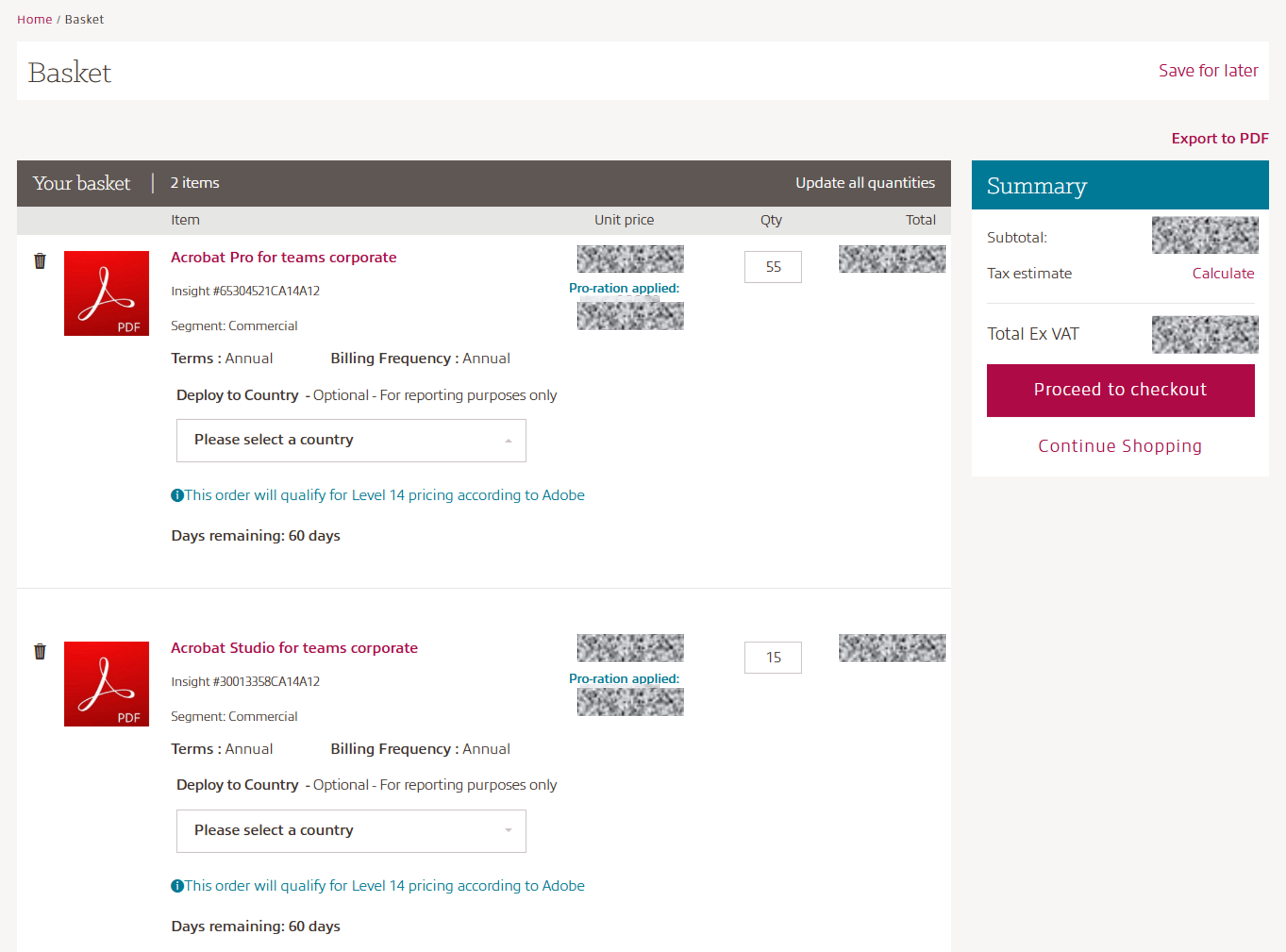
- Finally, click Proceed to checkout and follow the prompts to complete your purchase.