Insight's Cloud Commerce Platform (CCx) User Guide
12-2 - Adobe Manage Renewal
How to manage your Adobe VIP Marketplace renewal:
CCx is your platform to get the licenses you need. The following details provide instructions on how to use the Manage renewal functionality within CCx to schedule changes for your Adobe account.
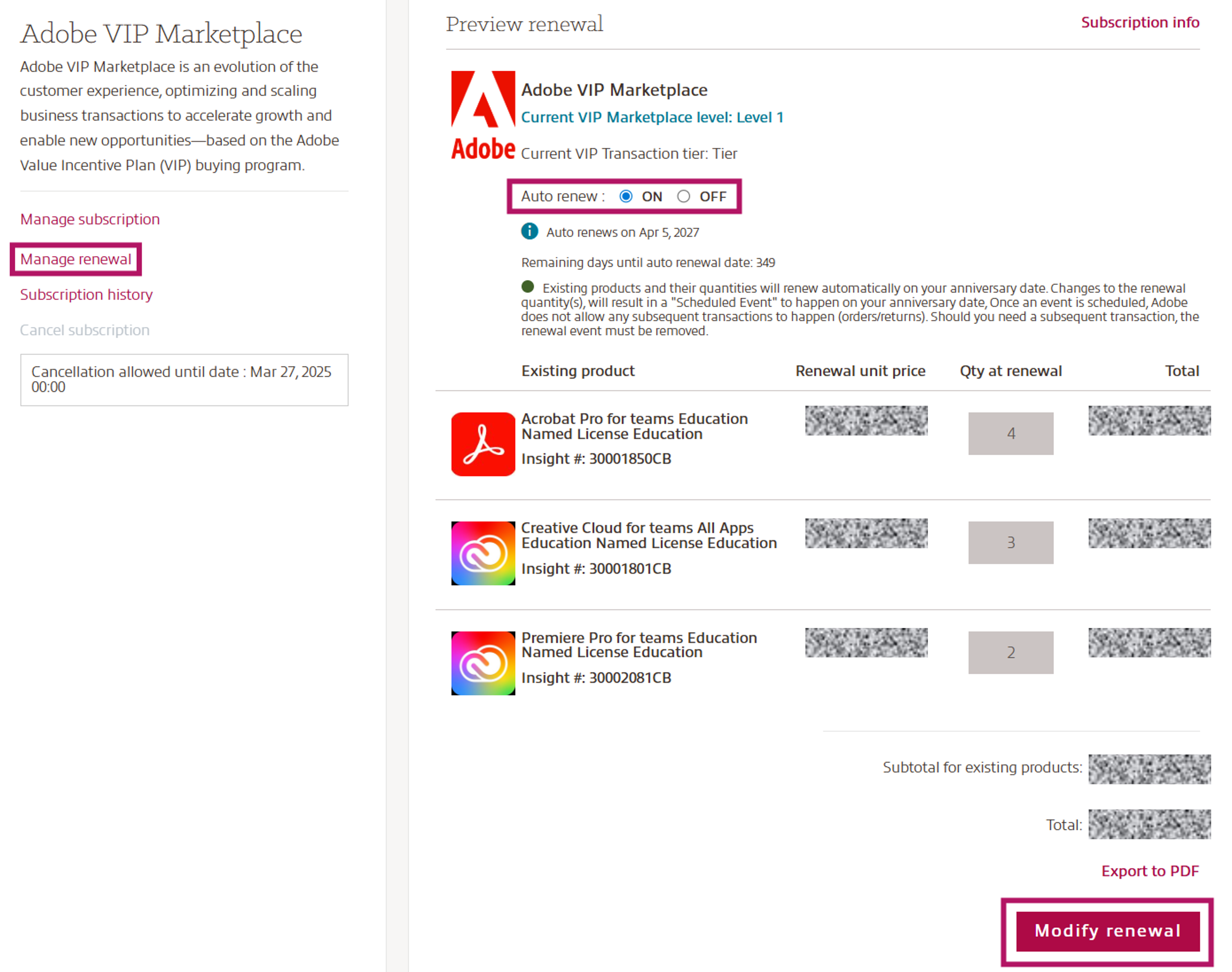
On the Subscription detail page, you will see a link on the left called Manage renewal. Clicking this button will show you options allowed by Adobe that can take place at the time of your contract renewal. These options will be displayed on the right side of the page.
The top section will display the Adobe VIP contract details; the Auto renew status and your renewal date. In the next section, you can view your current Adobe products, their quantity and the Renewal unit price.
To manage your renewal, click on Modify renewal to be able to add the quantity per product you would like after the renewal and a Purchase Order (PO) number if required.
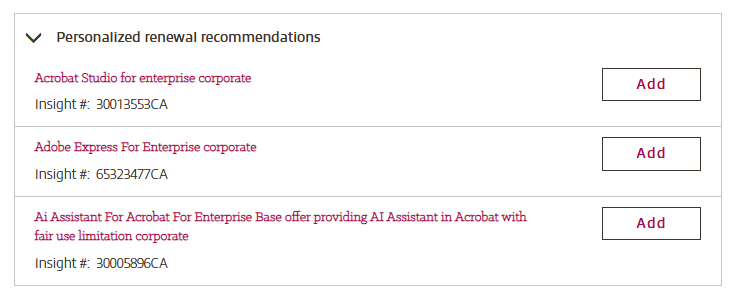
In addition, we have added Adobe Product Recommendations to help you discover relevant Adobe products at the right time within CCx.
All recommendations are personalized to your current environment, provided by Adobe, and automatically matched to the Adobe product catalog to ensure accurate, ready‑to‑purchase information.
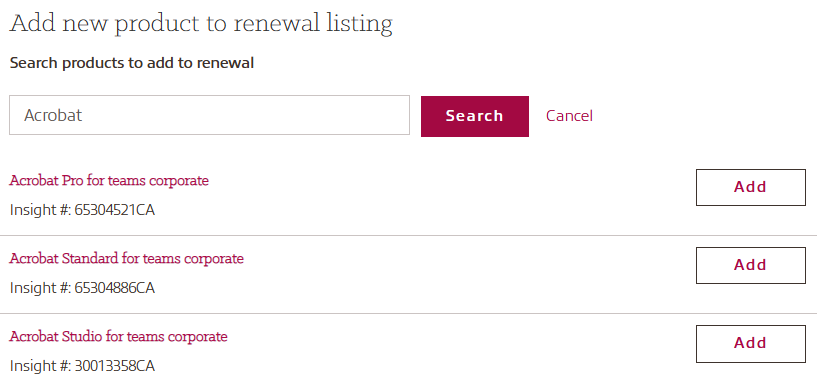
These recommendations or any other new product, can be added to the Adobe renewal. Search by name or product ID, add the product and quantity you need and save your renewal preferences.
You will see an Estimated renewal unit price displayed. Please note that pricing is subject to change by Adobe at time of renewal.
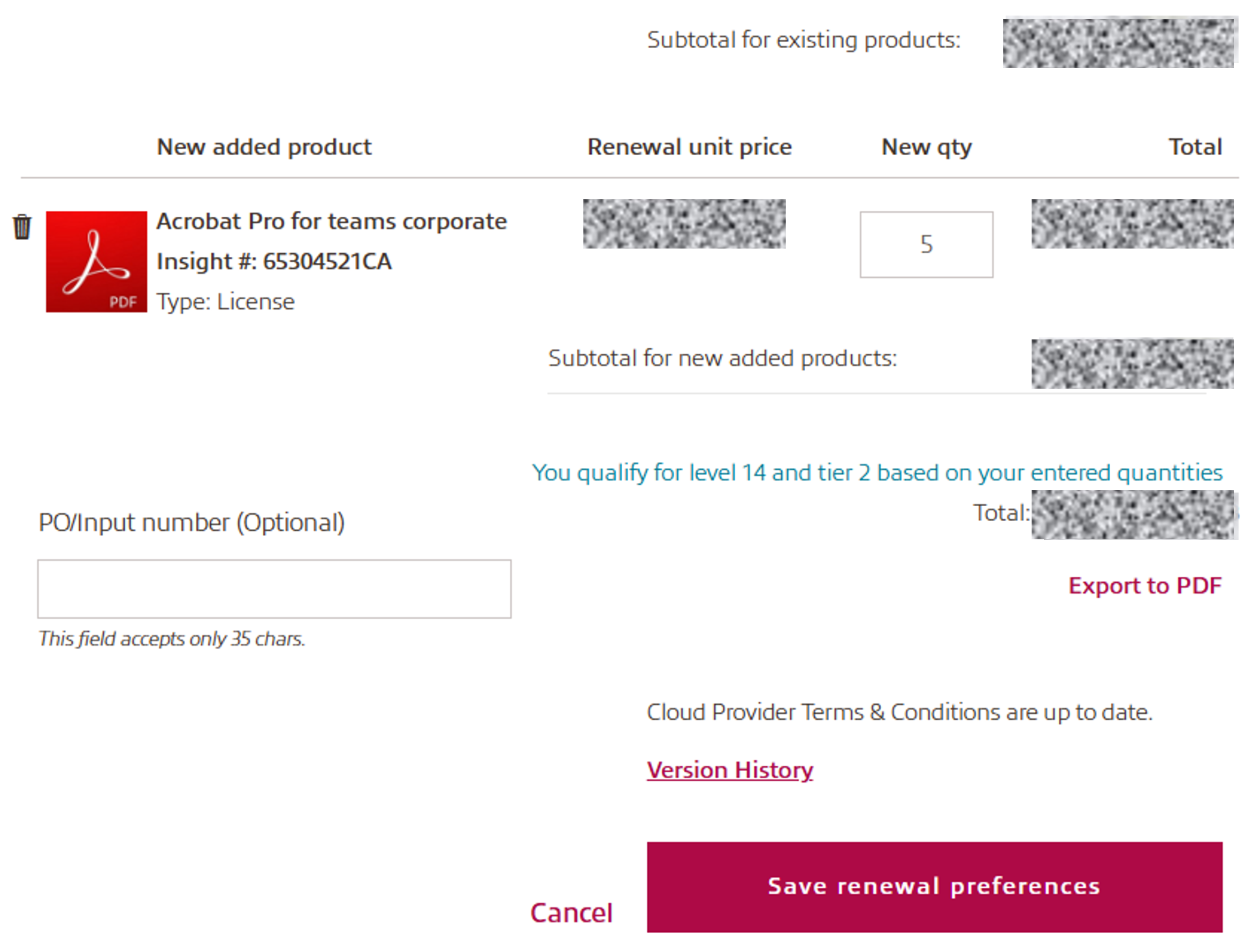
If needed, you can export your renewal preferences including all details into a pdf document.
CCx keeps track of the most recent version of the Terms & Conditions (T&C) that you have accepted. If you have already accepted the latest version, you can review them by selecting Version History and no further action is required.
Once done, click the Save renewal preferences button to proceed with the update.
When your Adobe VIP contract has been renewed, an automated email confirmation will be sent to all your admins on your CCx account. Reminder emails will also be sent 30, 60 and 90 days before your renewal takes place.
Please note:
- To change from a one-year to a 3-year commitment at the renewal, please reach out to your Client Success Manager or the Account team.
- In the last year of a 3-year commitment, the renewal page will be grayed out if there is no recommitment scheduled.
To arrange your 3-year recommitment please reach out to your Client Success Manager or the Account team.