Insight Cloud Commerce Platform (CCx) User Guide
5-1 Microsoft CSP Subscription Details Page
Microsoft CSP Subscription Detail Page
When you log into CCx, you will land on the Dashboard page. Use the top menu to navigate to the Subscriptions list page.
This is the main page from which you will be able to view and manage your Insight Cloud Care purchases.
The Subscriptions table for Adobe VIP marketplace, AWS, Microsoft 365-seat based & Software Subscriptions is at the top of the page, and if applicable, the Perpetual Software table is at the bottom. For ease of navigation, clicking Perpetual Software in the header will bring you directly down to the Perpetual Software table.
Use the filter options to only display products from selected cloud providers, subscription type, status or the manufacturer.
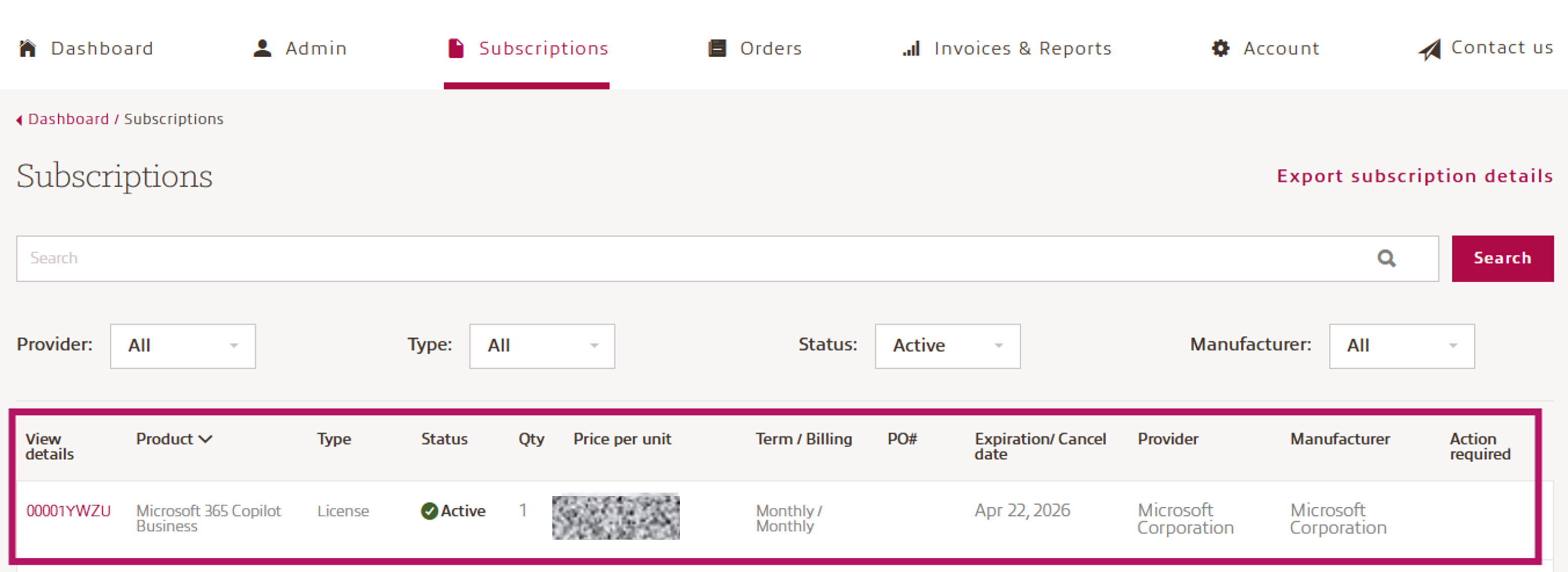
The entire subscription row is clickable and clicking anywhere within the line will take you to the Subscription / Product detail page where you can view the details of the specific product and if possible, make any desired changes.
The Subscription / Product detail includes the specifics of your Insight Cloud Care product, with the Subscription page content varying slightly from the Product page, which is for Perpetual purchases only. The details displayed on the page include:
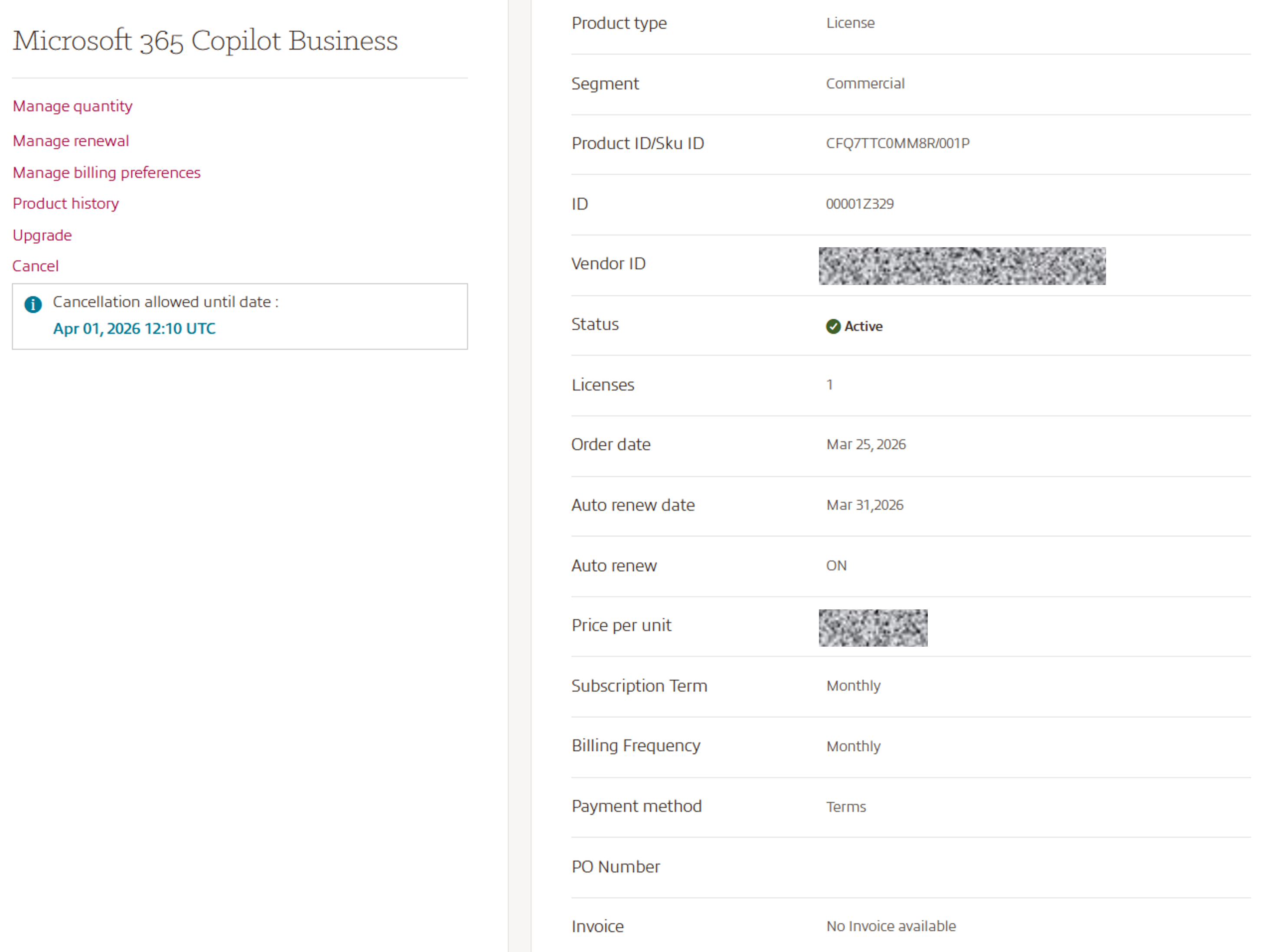
- Product Type: License, or Marketplace
- Segment: Commercial, Government (US only), Charity/Non-Profit, or Education
- Product ID/SKU ID: Microsoft Product ID/SKU ID for the product ordered
- ID: unique Insight subscription / product ID
- Vendor ID: unique vendor subscription / product ID
- Status: the current status of the subscription / product
- Licenses: the current quantity of licenses / product
- Order Date: the original order date of the subscription / product
- Auto Renew Date: date your subscription will auto renew, if applicable. This is the Expiration Date if Auto Renew is OFF.
- Auto Renew: current auto renewal state. All Microsoft 365 seat-based licenses and Software Subscriptions default to Auto renew = ON. You can change the auto renewal state by using the Manage renewal option on the left side of the screen. (N/A for Perpetual)
- Price per Unit: this is your current price for the product (based on subscription term and billing frequency) and includes your Insight Cloud Care discount.
- Subscription Term & Billing Frequency: current subscription term and billing frequency for the product. This can be modified midterm using the Manage billing preferences button, aligned to the Microsoft NCE program guidelines. Some modification can only take place at next renewal and can be preset using the Manage renewal option on the left side of the screen.
- Payment Method: current payment method set for the product.
- PO Number: the PO number used for the subscription / product. This is not a required field and is for your informational purposes. It will be displayed on your pdf invoice and Billable items report for reference.
Note - You can have multiple subscriptions / products with the same PO number, but all licenses / quantity inside the same Insight subscription will display the same PO number, as set on this page
At the bottom of the Subscription / Product detail page you will find subscription / product history details and if applicable, any pending Scheduled changes displayed.
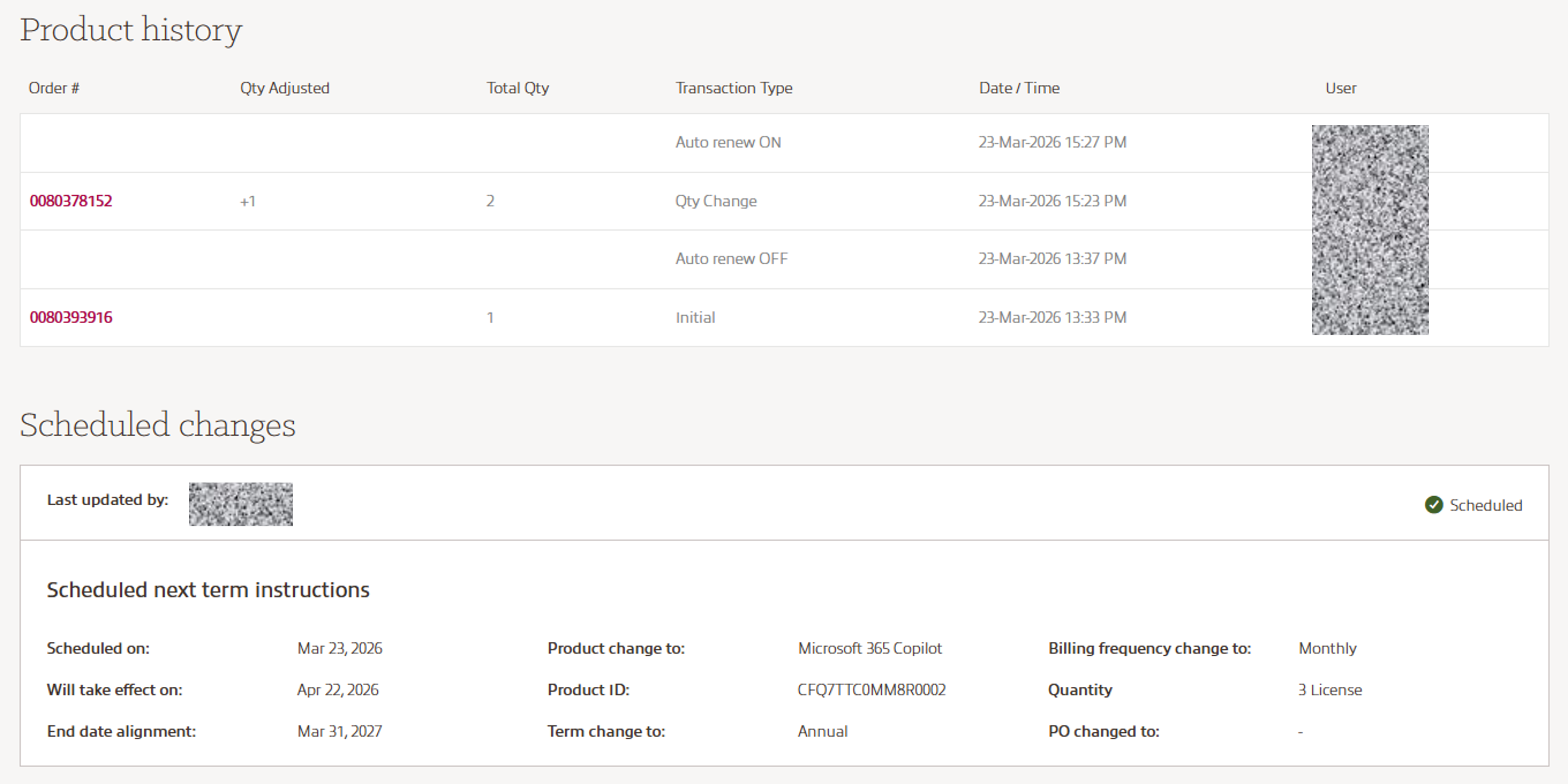
This details will enable you to track subscription / product history:
- Order #: Including a link to the order details
- Qty Adjusted
- Total Qty
- Transaction Type: Initial, Qty Change, Auto renew On/Off, Cancel
- Date/Time
- User
- Scheduled changes: Set in Manage renewal settings and to take effect at the subscription renewal