Insight's Cloud Commerce Platform (CCx) User Guide
10-1 - Microsoft How to Purchase
How to purchase Microsoft CSP licenses:
CCx is your platform to get the licenses you need. New licenses purchases can be made using the following ways:
- Create a new subscription:
Think of creating a new subscription like creating a new container – where all licenses within this subscription have new attributes: term, billing frequency, unit price, and end/renewal date. Creating a new subscription will add a new line for the product on your Subscriptions list page. This is helpful if you need to purchase a new product or a different subscription term for a product you already have.
- Increase the license count on your existing subscription:
If you already have a subscription for the product you need to purchase within CCx, you can increase the quantity of licenses within this subscription as detailed in the Manage quantity guide page. The licenses added to this existing subscription take on the attributes of the subscription like term, billing frequency, unit price, and end date. This allows you to take advantage of both the existing unit price lock (set for the term) from Microsoft and the licenses will all co-term, having the same end/renewal date.
How to create a new Microsoft 365 (seat-based) subscription:
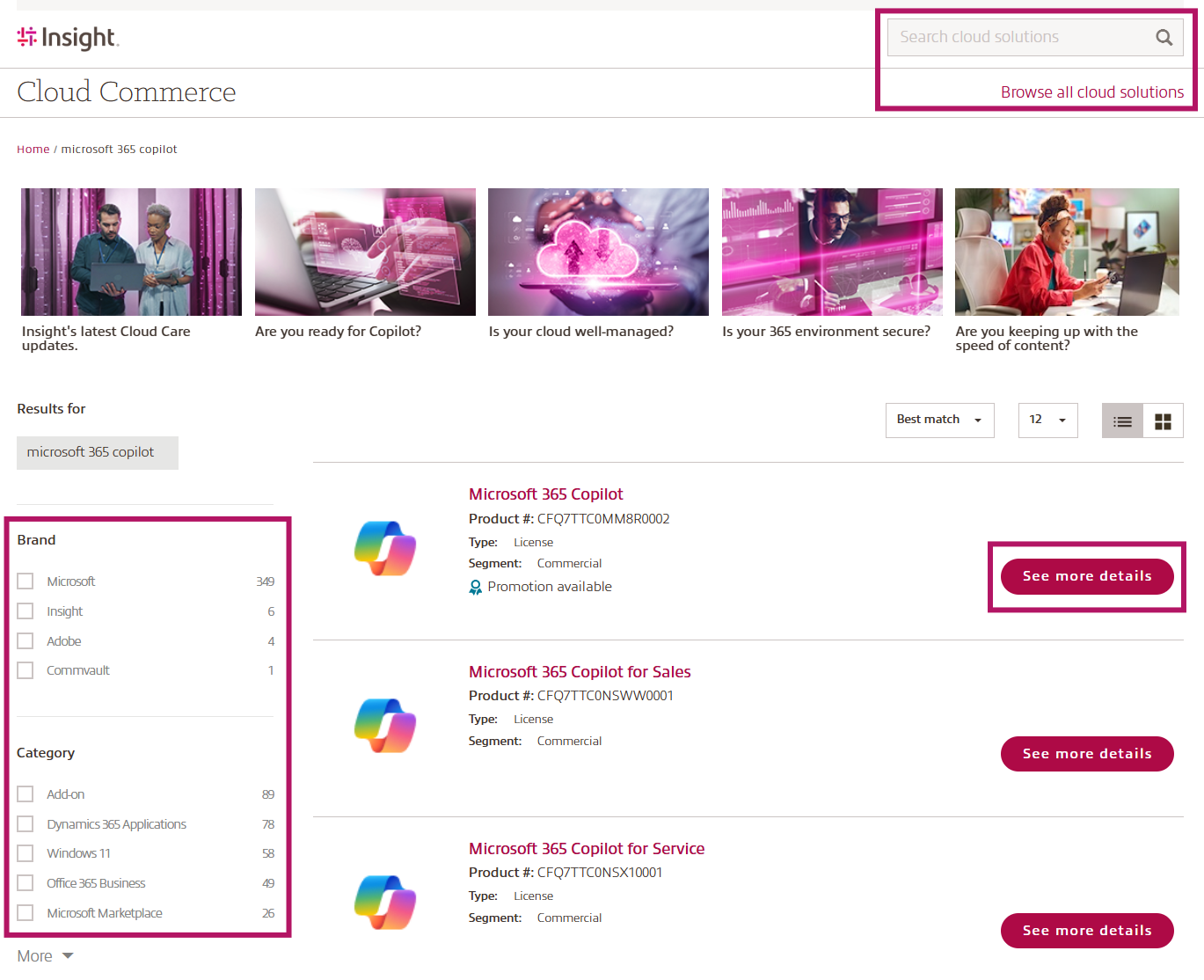
- Find the product you need by either typing the product description/key words into the Search cloud solutions field or selecting Browse all cloud solutions to view the product catalog. Use the filter option in the product catalog to find what you need.
Then click See more details to be taken to the product detailed page.
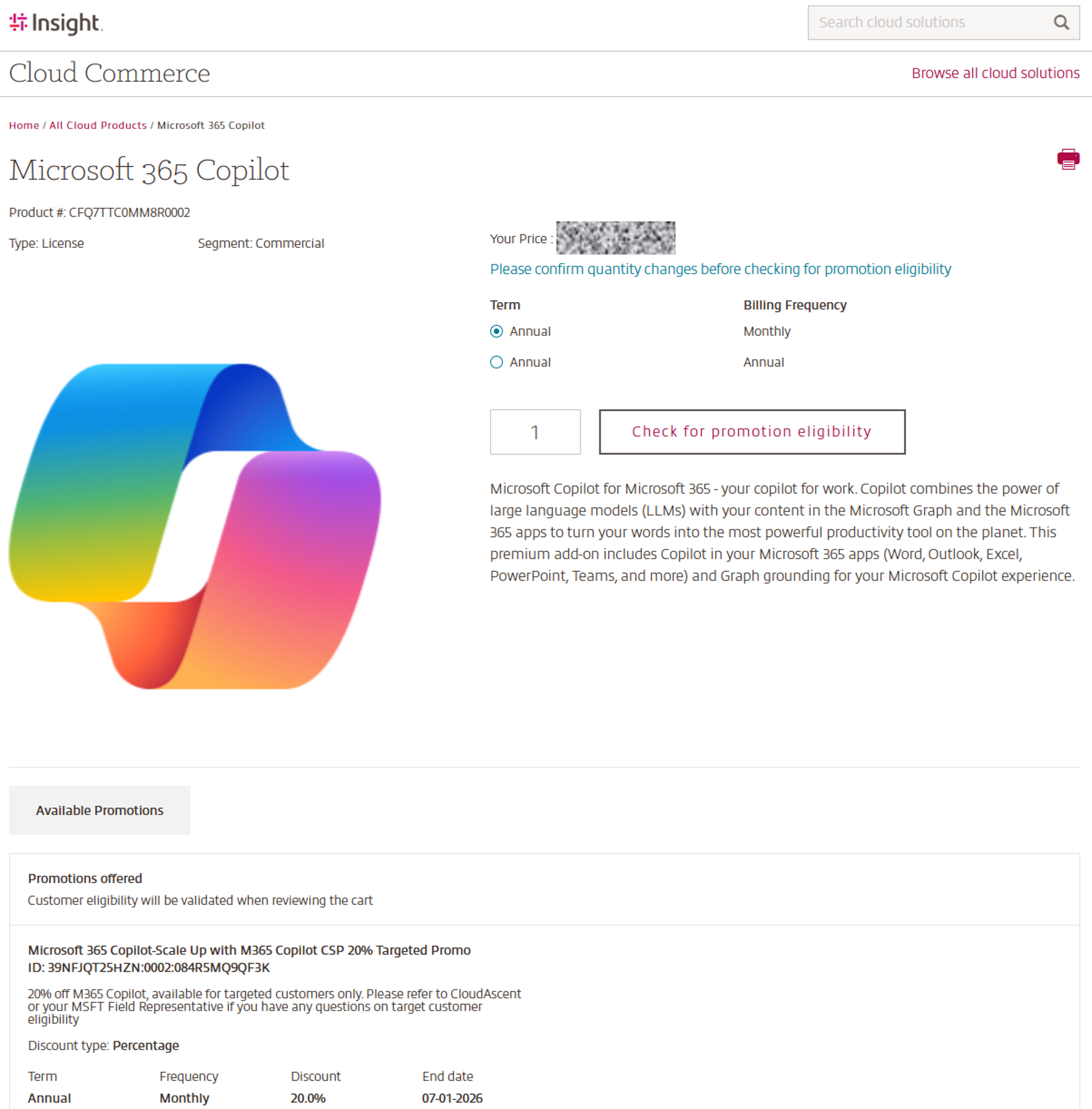
- Once you have selected and navigated to the desired product detail page, use the radio buttons to select the desired Term and Billing Frequency and add the quantity needed.
Available Microsoft promotions will be displayed below the product information.
Check for promotion eligibility will validate the promotion eligibility with the Cloud provider and display applied promotions after you have added the product into the basket.
If no promotion is available, simply add the product into the basket.
NOTE: Promotion eligibility is determined by Microsoft when the product is added to cart. If Microsoft determines that you meet the eligibility requirements for this promotion, you will see a strikethrough on the unit price, and a Promotion applied message with the new unit price in the cart. Due to Microsoft’s timebound nature of promotional eligibility, promotional pricing cannot be saved into a quote PDF and will only be seen while the product is in the cart.
You will also see messaging to reflect this in the pdf quote itself.
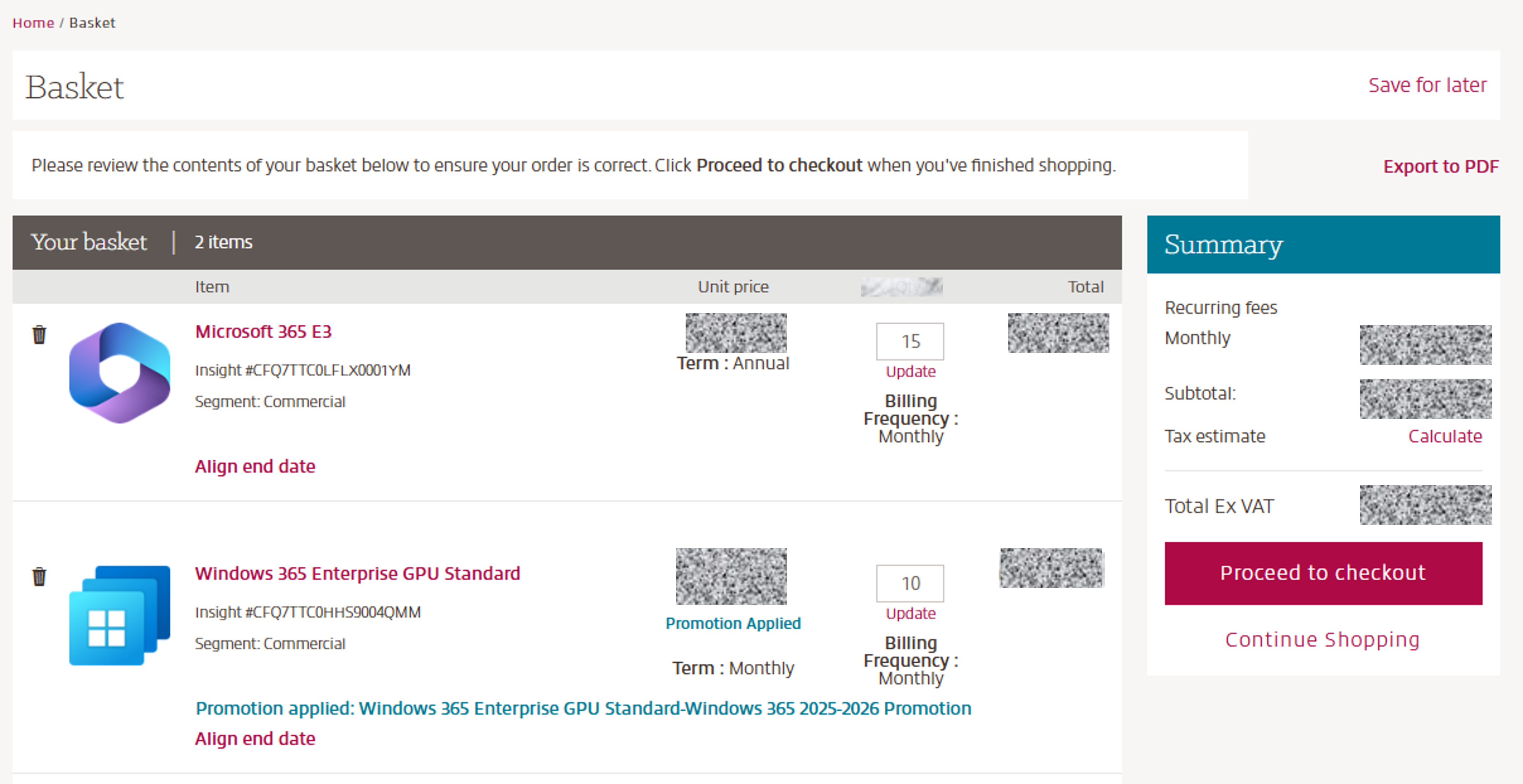
- When all products are added to cart, please review your selections to ensure term, billing frequency, and quantities are as desired.
- At this point in your, you can choose to Align end date to co-term your new subscription and make renewal management easier. Microsoft allows you to align the end date in two different ways:
With the end of the calendar month:
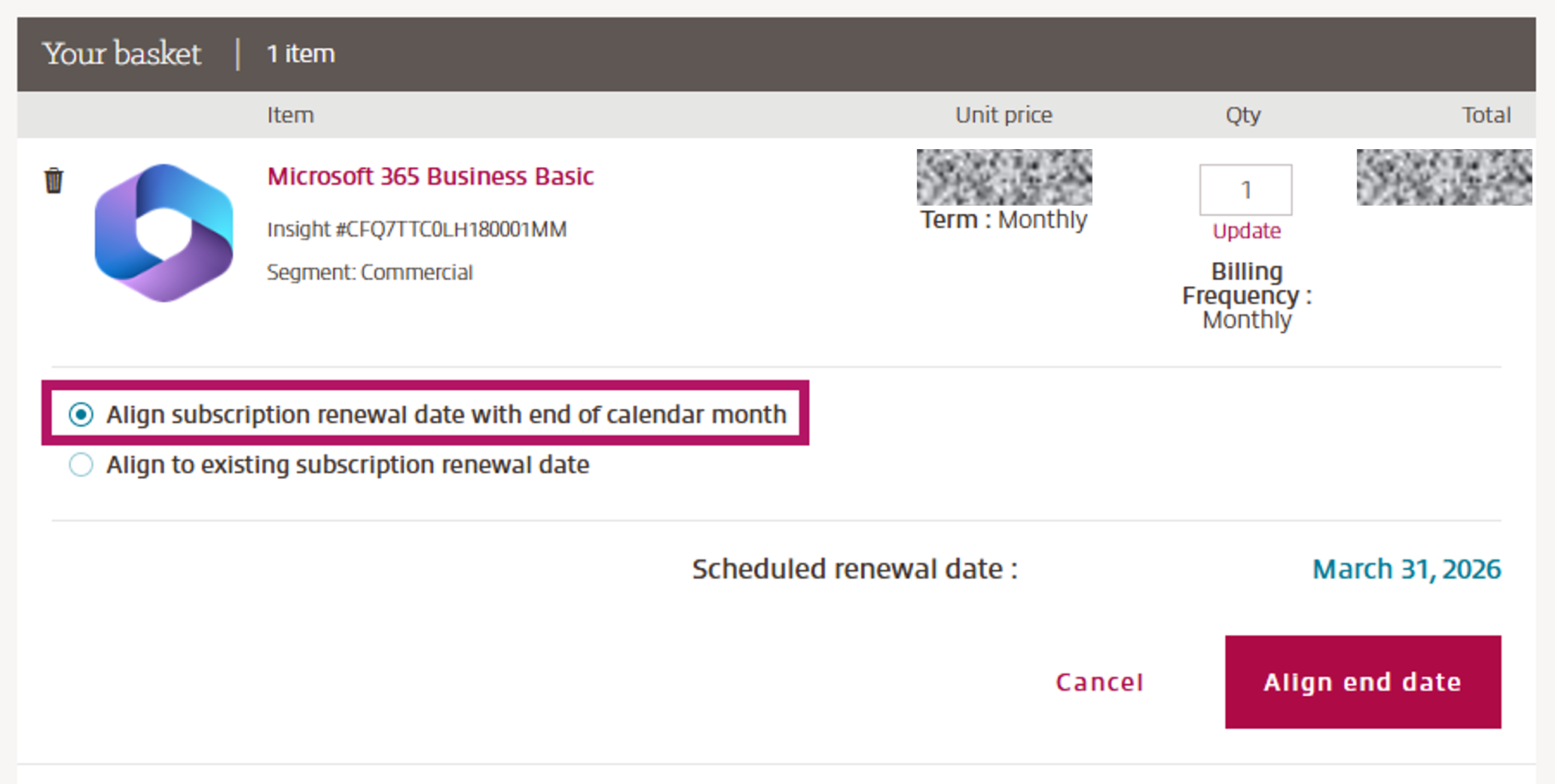
or with existing subscription(s) in your CCx platform.
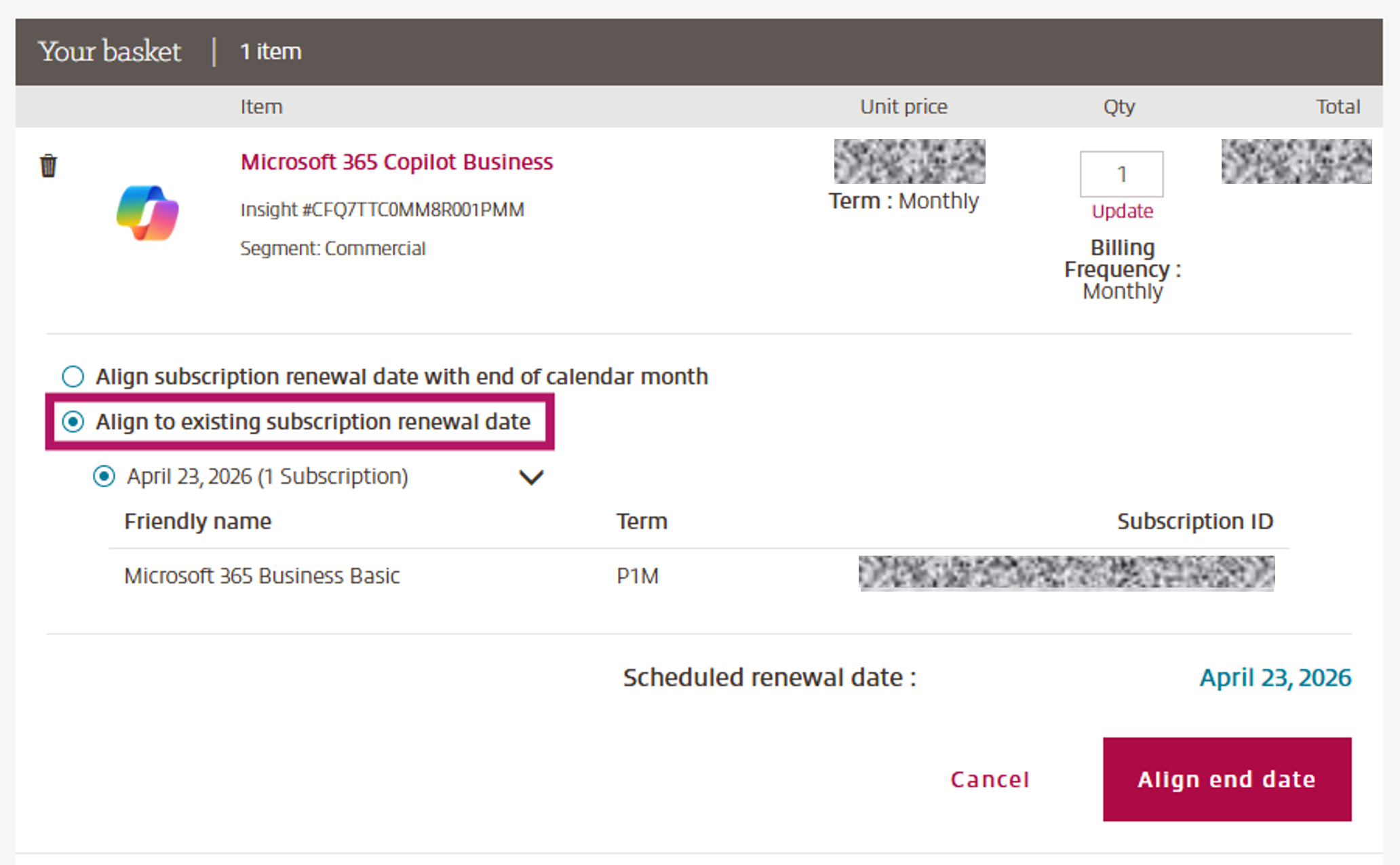
Notes on Align end dates:
The Align end date options displayed are based on Microsoft program design. Not all subscription terms can be aligned – for example, new annual or triennial term subscriptions cannot be aligned with an existing monthly term subscription.
If an Align end date selection is not made, the subscription renewal date will be based on the purchase date and term selected.
When a new annual term subscription is aligned to an existing annual term subscription, the end date of the new subscription exactly matches the end date of the existing subscription. Thus, the first term of the new subscription is shorter, and billing will be prorated. However, the Unit price displayed in buy.insight.com is the full unit price and proration for any new subscription with an aligned end date will be represented in your invoice and Billable Items report.
To remove set end date, click Clear co-term setting. - Finally, click Proceed to checkout and follow the prompts to complete your purchase.
Please note: To complete your puchase, Microsoft requires an up to date acceptance of the Microsoft Customer Agreement (MCA).
In case your MCA must be updated, please follow the instructions within CCx, or visit the MCA section within the Account tab - Microsoft.
How to purchase Software Subscriptions (Server) & Perpetual Software:
When purchasing either Software Subscriptions or Perpetual products on CCx, please follow the process outlined above to find the products and add them to your basket.
There are a few differences to be aware of such as:
- Microsoft does not allow an increase in quantity for Software Subscriptions or Perpetual products. If you need additional quantities, you must complete a new purchase.
- Microsoft does not allow you to align the end date of a Software Subscriptions purchase with another Software Subscription or your 365 seat-based license subscriptions.
How to purchase your Azure plan:
To purchase Azure services over CSP, please follow the same process outlined above to find the Azure plan product and add it into your cart.
With the purchase of an Azure plan, a single Azure plan container including one Azure plan subscription (entitlement) will be created.
If you require additional Azure plan subscriptions (entitlement), click into your Azure plan subscription within the Subscription page. In the Manage Azure subscription field you can add new Azure plan subscriptions.
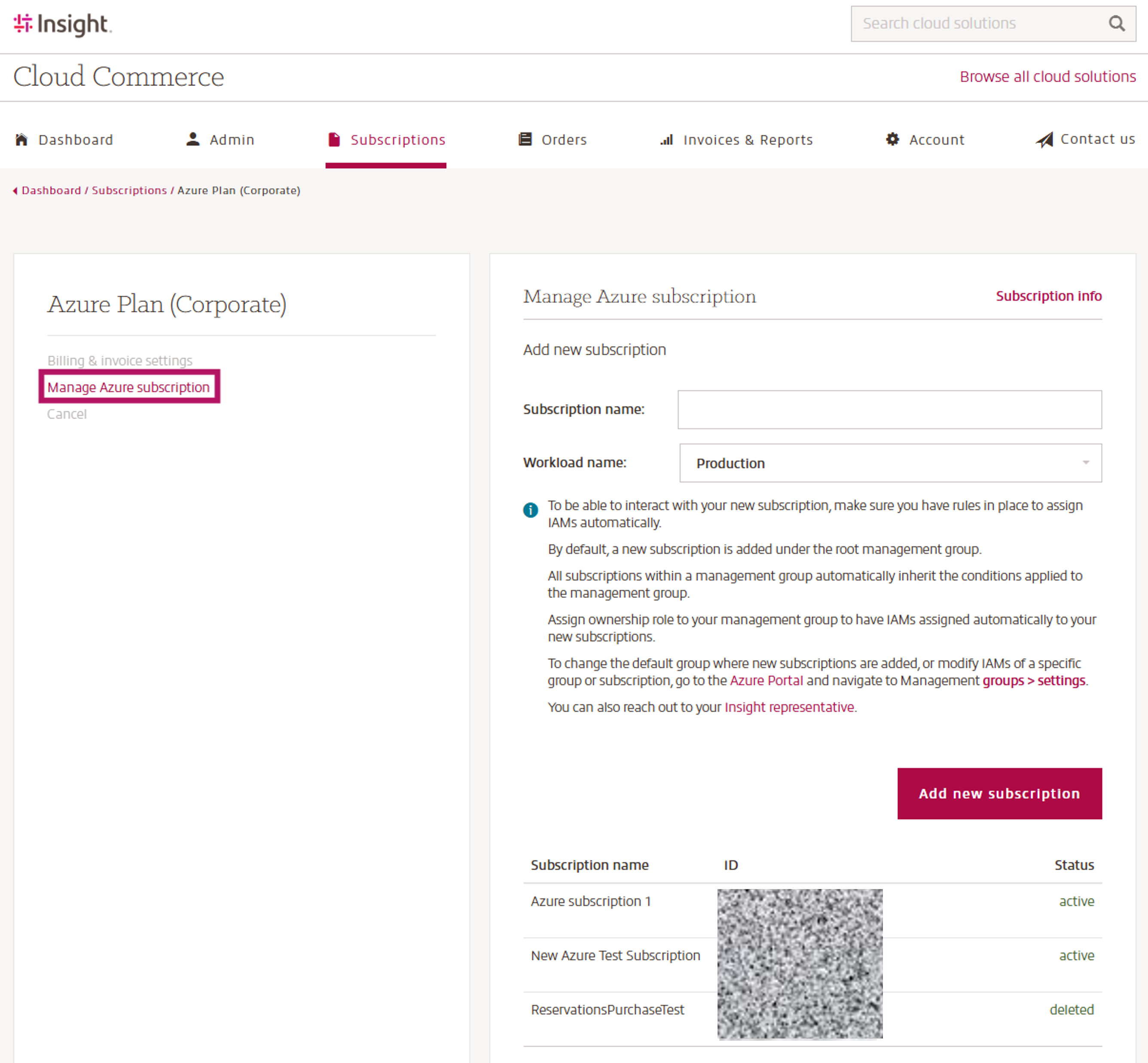
More details can be found in the How to add an Azure plan guide.
Saved Basket Functionality - How to work with your Basket:
The Saved Basket feature allows you to save a basket of products and return to it later without having to rebuild your order. This is useful when:
- You need internal approval before placing an order.
- You are preparing a large or complex purchase.
- You want to compare options before checking out.
- Multiple products need to be purchased at a later date.
- Your Insight representative has created a basket for you to support your purchasing journey and initial cloud procurement. Rather than searching for and configuring products yourself, you can simply review the prepared basket, make any required adjustments, and proceed with checkout.
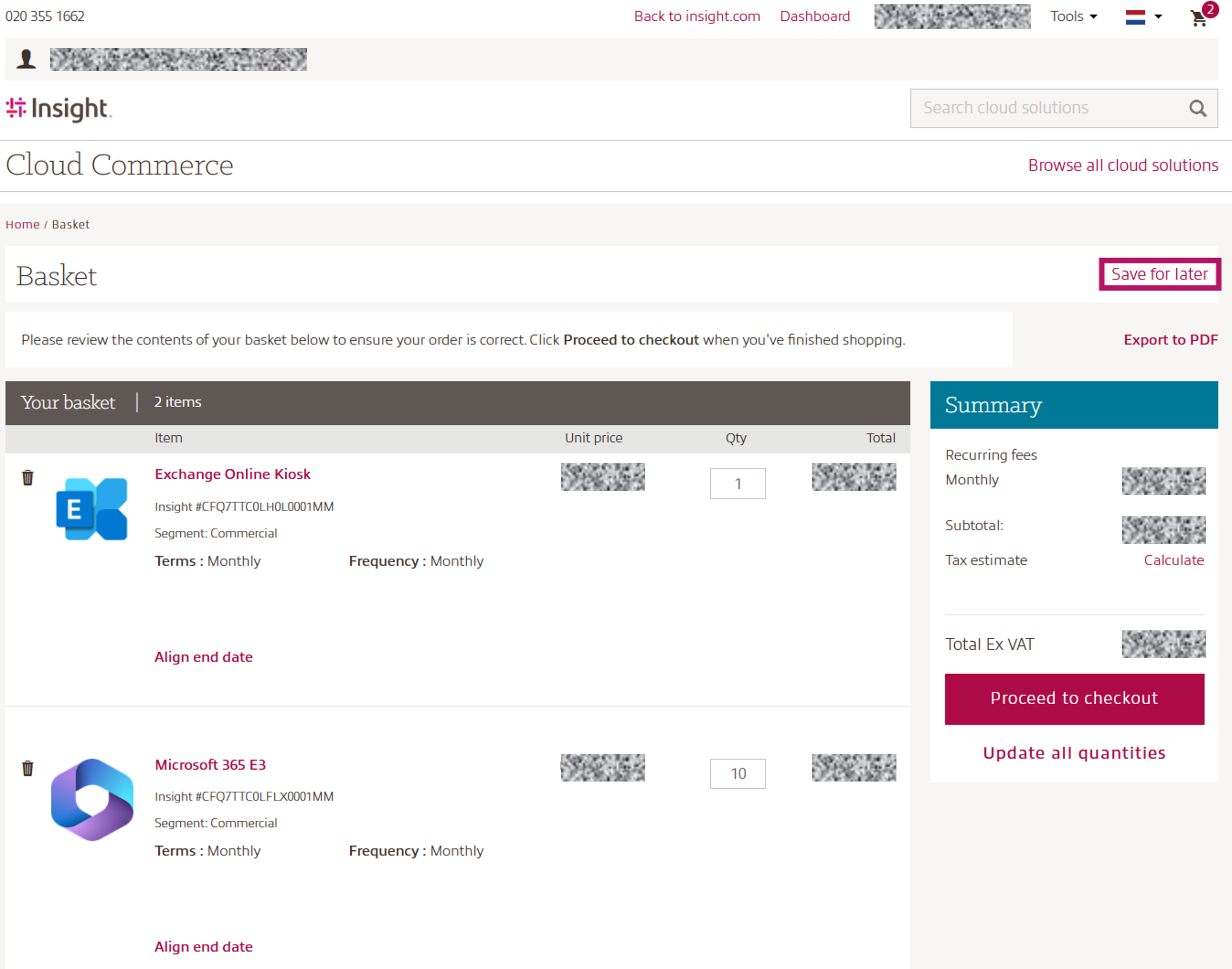
Saved baskets help you continue your purchasing journey exactly where you left off.
They also enable collaboration between you and your Insight team by providing a preconfigured basket tailored to your business requirements.
The saved basket remains available for future access and can be used whenever you are ready to complete your order.
Important: Unsaved baskets are automatically removed at the end of each month.
This is necessary because Microsoft publishes new price lists every month, which may result in pricing changes.
To avoid losing your basket and to preserve your product selection for future review or checkout, we recommend saving your basket before month-end.
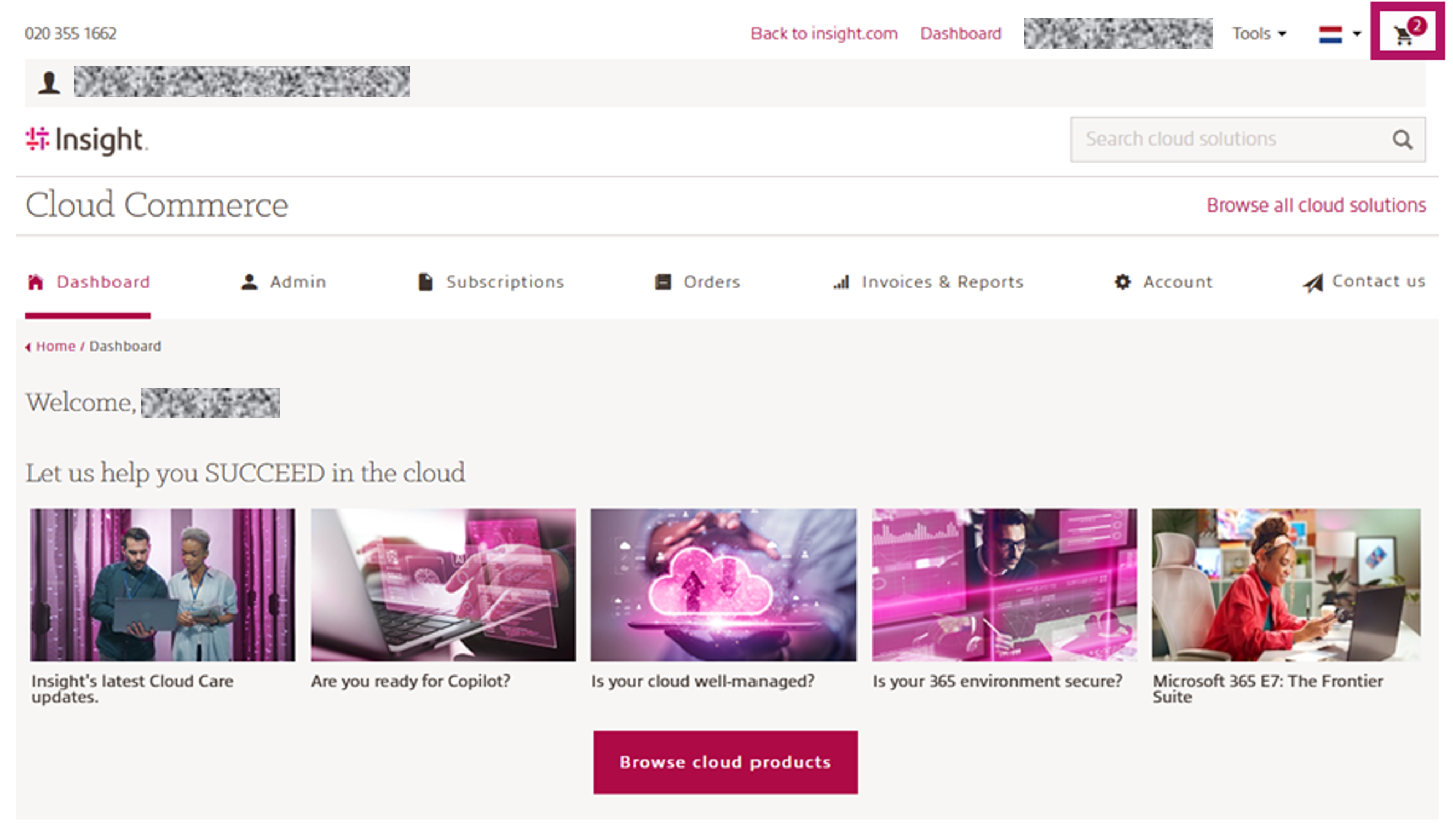
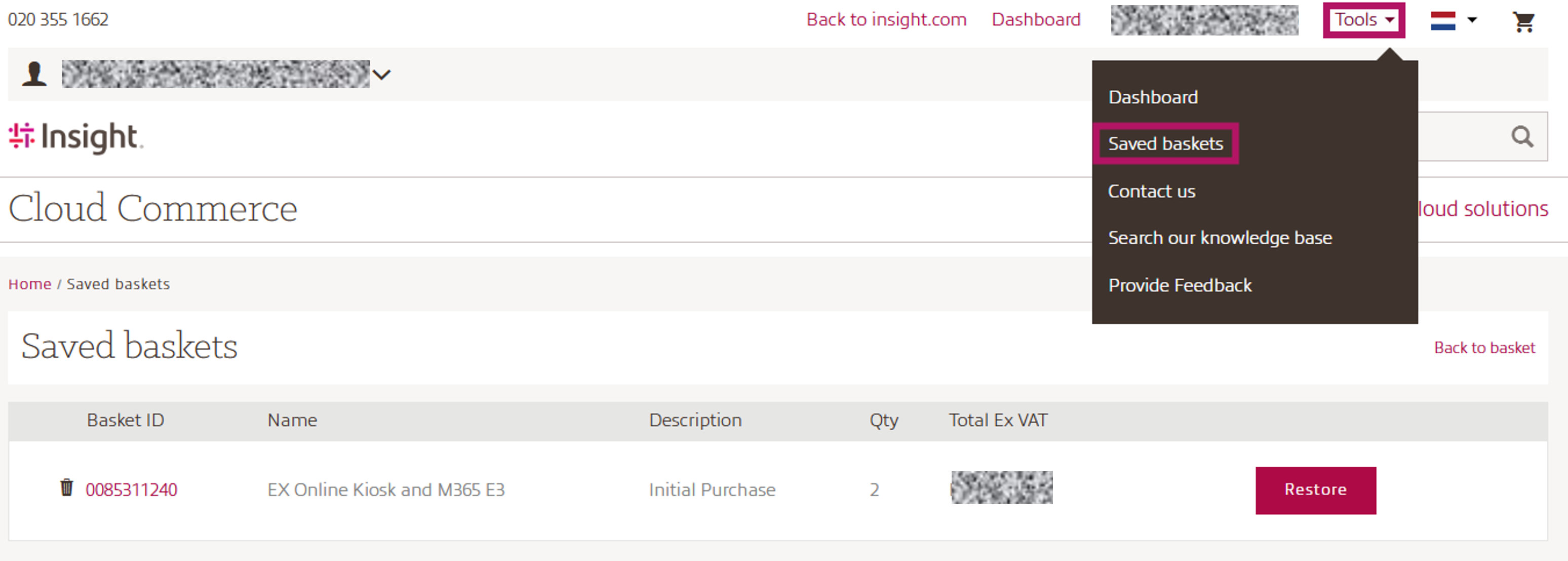
Accesing a saved basket:
- Navigate to Saved Baskets.
- Select the basket you wish to review.
- Click the basket name to open it.
The basket will display all saved products, quantities, and configuration details. Customers can access saved carts later using the same saved cart functionality available within CCx.
Converting a Saved Basket into an Order, when you are ready to purchase:
- Restore the saved basket.
- Review all products, terms, billing frequencies and quantities.
- Proceed to checkout
- Select payment type & add a Purchase Order (PO) number if required.
- Confirm shipping information & payment info
- Review your order
- Place your order