Insight's Cloud Commerce Platform (CCx) User Guide
12-1 - Microsoft Manage Renewals
How to manage your Microsoft CSP renewals:
CCx is your platform to get the licenses you need. The following details provide instructions on how to use the Manage renewal functionality within CCx to schedule changes for your Microsoft 365 seat-based subscriptions and Software subscriptions.
Microsoft allows some modifications to be made to your 365 seat-based NCE licenses mid-term – like increasing the license quantity or lengthening your subscription term (i.e. changing from a monthly term to annual term). But some changes – like quantity reduction, billing frequency change without term change, co-term end date - Microsoft will only allow at the next term renewal.
The Manage renewal functionality in CCx allows you to schedule these changes in advance of the renewal, and they will take affect at the time of the subscription renewal.
On the Subscription detail page, you will see a link on the left called Manage renewal. Clicking this button will show you options for preset changes allowed by Microsoft that can take place at the time of your subscription’s renewal. These options will be displayed on the right side of the page.
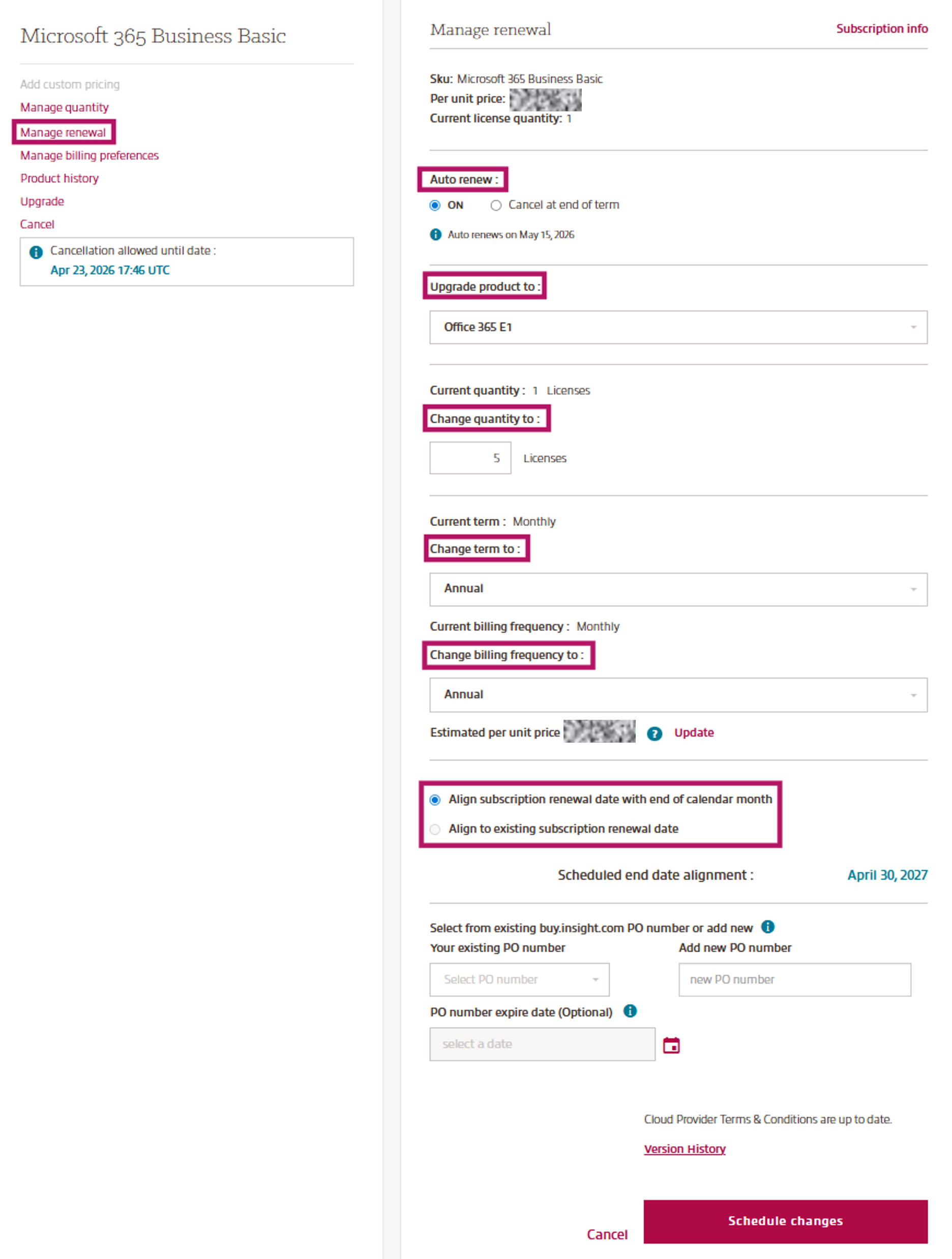
The top section will display the current subscription product, per unit pricing, and license quantity.
In the next section, you can view the date when your subscription is scheduled to auto-renew and choose to either leave the Auto renew ON or select Cancel at end of term by using the radio buttons. If you choose Cancel at the end of term, it will remove your ability to make any further changes in the Manage Renewal screen and display messaging that states “At the expiration date, users will immediately lose access to the services and data for this subscription. Admins will have 90 days to backup relevant data.” Along with this reminder messaging on our portal, if you opt to cancel at end of term, we’ll send you an email confirming your choice.
If you would like to upgrade your product licenses at the time of renewal you can choose which product you would like to upgrade to, as allowable by Microsoft’s design. Please note – upgrades into one of your existing subscriptions at the time of renewal is not currently supported by Microsoft, and therefore any upgrades scheduled to take place at time of renewal will create a new subscription for that product.
You can schedule a quantity change for your subscription – increasing or decreasing - by entering the desired number of licenses into the Change quantity to box. This new quantity will take affect at the time of renewal.
You can schedule to have a change to the current subscription term and/or billing frequency, as allowable by Microsoft’s design. The new term and billing frequency will take affect at the time of renewal.
You will see an Estimated per unit price displayed, with hover over messaging that states “Price is subject to change by Microsoft at time of renewal". The unit pricing shown is based on selections made and is not prorated for any coterminous changes. At the time of billing, any applicable proration will be applied by Microsoft and will be viewable in your NCE Billable Items Report.
In the next section of the Manage renewal screen, you can now choose your subscription to co-term with either the end of the calendar month or with one of the existing subscriptions in your CCx platform. Select the radio dial to choose which co-term option you would like.
- Aligning subscription renewal date with end of calendar month will display the new scheduled end date alignment accordingly.
- Aligning to existing subscription renewal date provides the option to choose which subscription, from your CCx platform, you would like to co-term the subscription with.
Any coterminous change to the subscription will take place at the time of the subscription’s renewal.
You can set the Purchase Order number for the next renewal of your subscription as well as an expiration date, if desired.
CCx keeps track of the most recent version of the Terms & Conditions (T&C) that you have accepted. If you have already accepted the latest version, you can review them by selecting Version History and no further action is required.
Once done, click the Schedule Changes button to proceed with the update.
When scheduled changes have been set, you will see it indicated in the following locations:
- On the Subscription details page, next to the Manage renewal button.
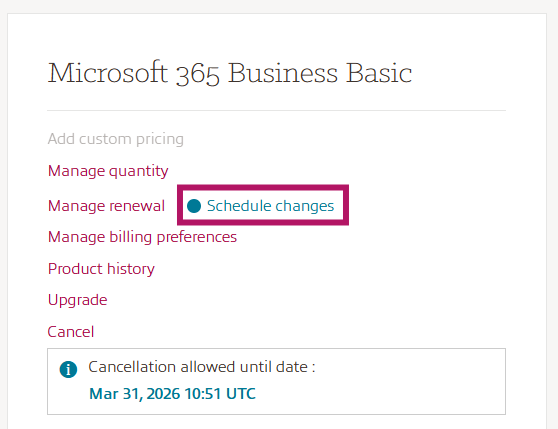
- On the Subscription details page, when you click Manage renewal, you will see a message that displays Schedule changes will occur on auto renewal date with two buttons:
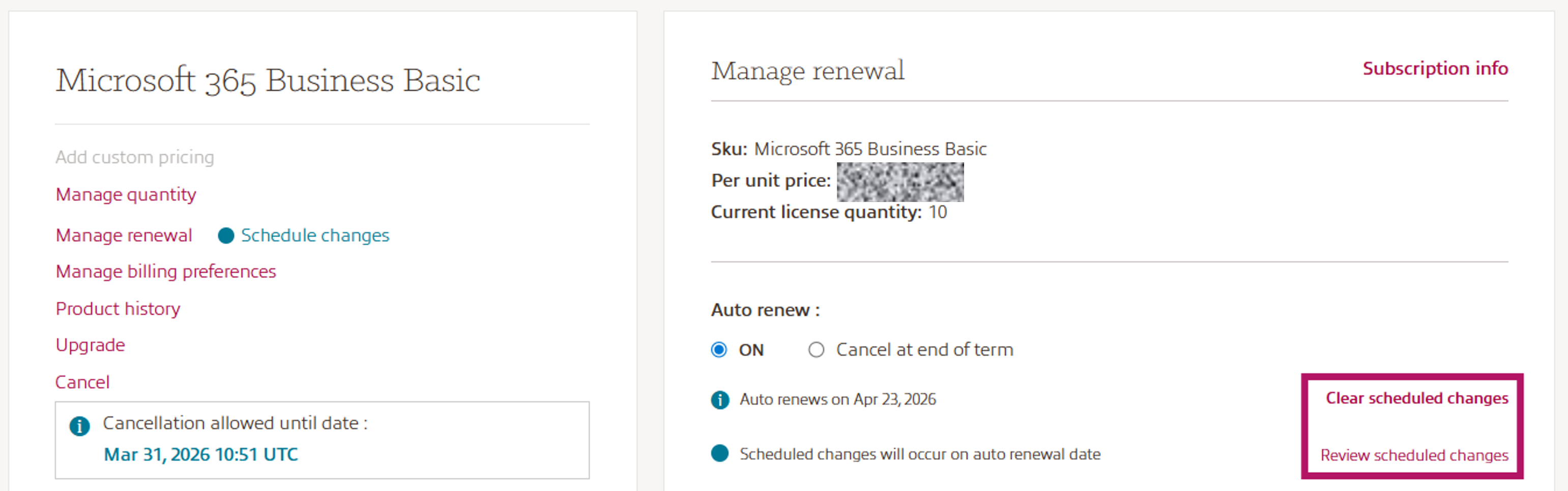
o Clear schedule changes: Select to clear the changes and
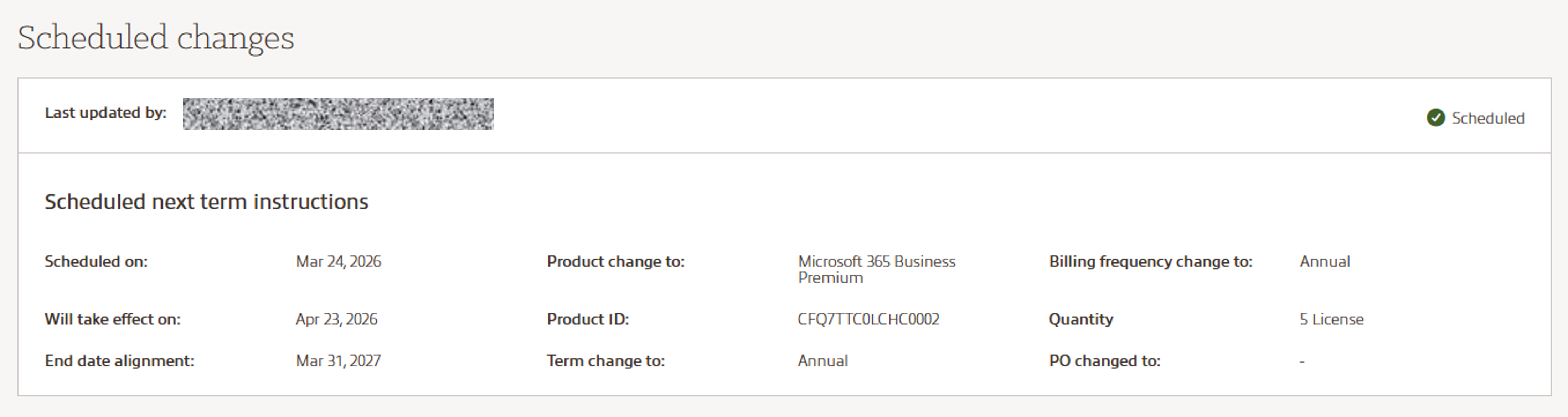
o Review scheduled changes: Select to go to the Scheduled changes box - The Scheduled changes box will show you any changes that are set to happen when your subscription renews. You can also see the name of the admin who scheduled the change and the date it was scheduled.
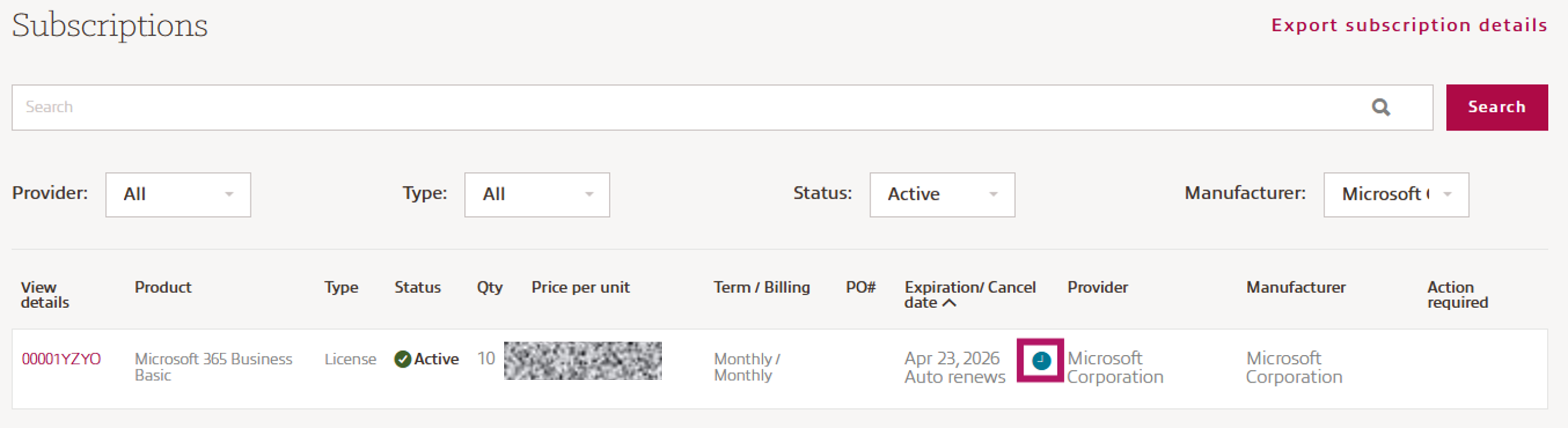
- On the Subscription list page, you will see a clock icon next to the auto renewal date, with hover over messaging that reads “Automatically Renews with scheduled changes.”
NOTE : A warning message will pop up when attempting to make an immediate change to the subscription (e.g. quantity increase, term/billing frequency, upgrade, etc.) while the subscription has scheduled changes at renewal.
By Microsoft design, ALL scheduled changes are deleted when an immediate change is completed. If desired, any necessary scheduled changes will need to be re-entered by you after the immediate change is completed.
When a subscription has been renewed, an automated email confirmation will be sent to all your admins on your CCx account. A reminder email will also be sent 60 days before your renewal takes place.