Insight’s Reseller Admin Portal (RAP)
User Guide
10 – Adding new end-customers
How to add new end-customers
Within RAP you can create and manage your end-customers.
Complete the end-customer registration form:
New end-customers can be added in two ways:
- End-customer self-registration:
Send the end-customer the link to your White Label Storefront, offering them the ability to self-register. The link to your customized end customer Storefront is in the upper right-hand corner of the Reseller Admin Portal (RAP).
This link will be a generic Insight provided domain unless you opted to host the storefront on your own domain when completing the Insight Reseller Migration form or have requested customization. When end-customers are creating their own accounts, please ensure they are using a valid email address

- Reseller setup:
You complete the registration page on the end-customer’s behalf. You will use the “View storefront” link to create new customers. The illustration below demonstrates the view when accessing the White label Storefront:
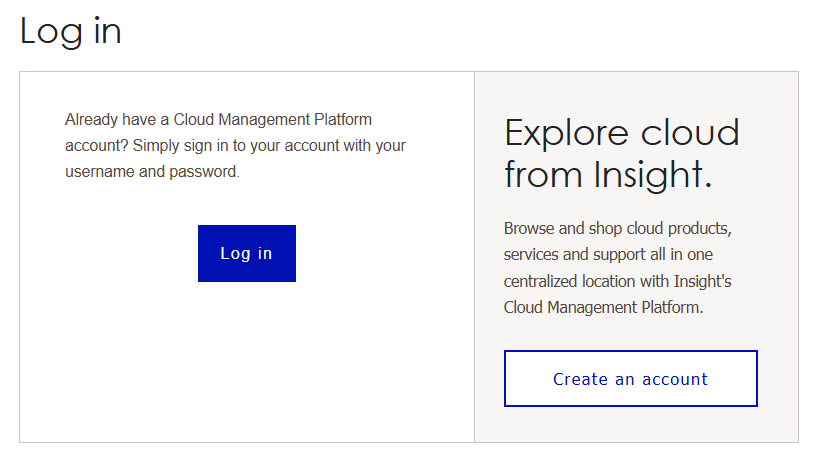
When you create an account on the end customer’s behalf, please consider the following:
- This email address cannot be the same as the address used as the Admin for the Reseller Admin Portal.
- Any email address that hasn’t been used before can be used to create the account. The platform does not require the user to have access to the email address filled in the form to complete the end customer account creation, unless you create a new end-customer tenant
- However, we strongly recommend using a valid email address that you have access to.
The following information is needed to successfully add a new end-customer:
- Email address
- Password
- Confirm Password
- First Name – Don’t use Admin or test
- Last Name - Don’t use Admin or test
- Company Name – Don’t use comma
- Line of Business – Corporate, Education or Non-Profit
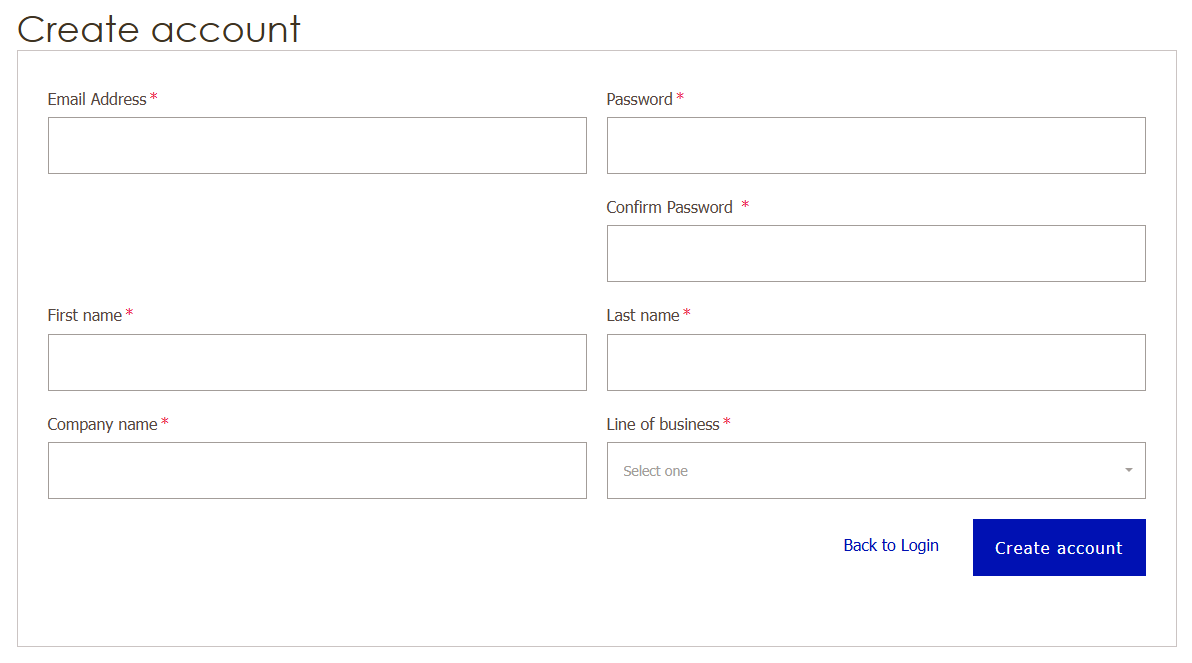
All customers will have access to “Corporate” products per default. Select a special line of business (Education or Non Profit) to provide customers with access to related products.
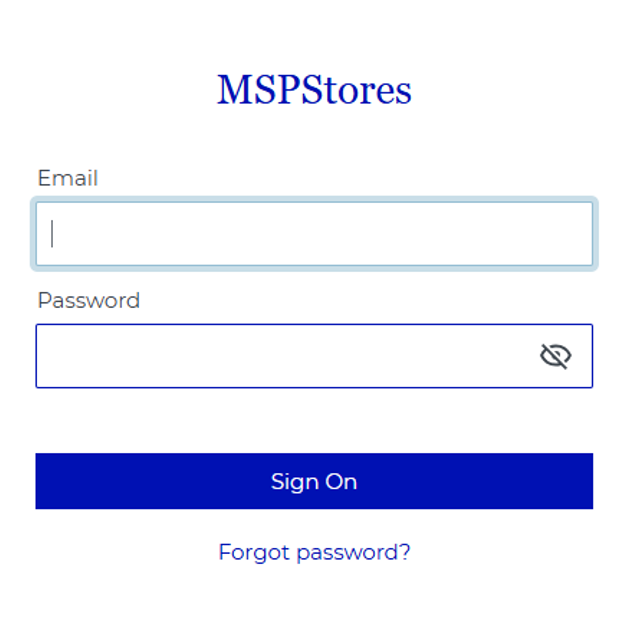
After you have created your account, please login using your email Adress and password.
In case your password is not recognized, wait up to 5 minutes, retry you might need to reset your password.
Create a new tenant or link an existing tenant:
Once the end-customer account has been created it requires a Microsoft Tenant to be associated to this account.
There are two options available:
- Link an existing Microsoft tenant
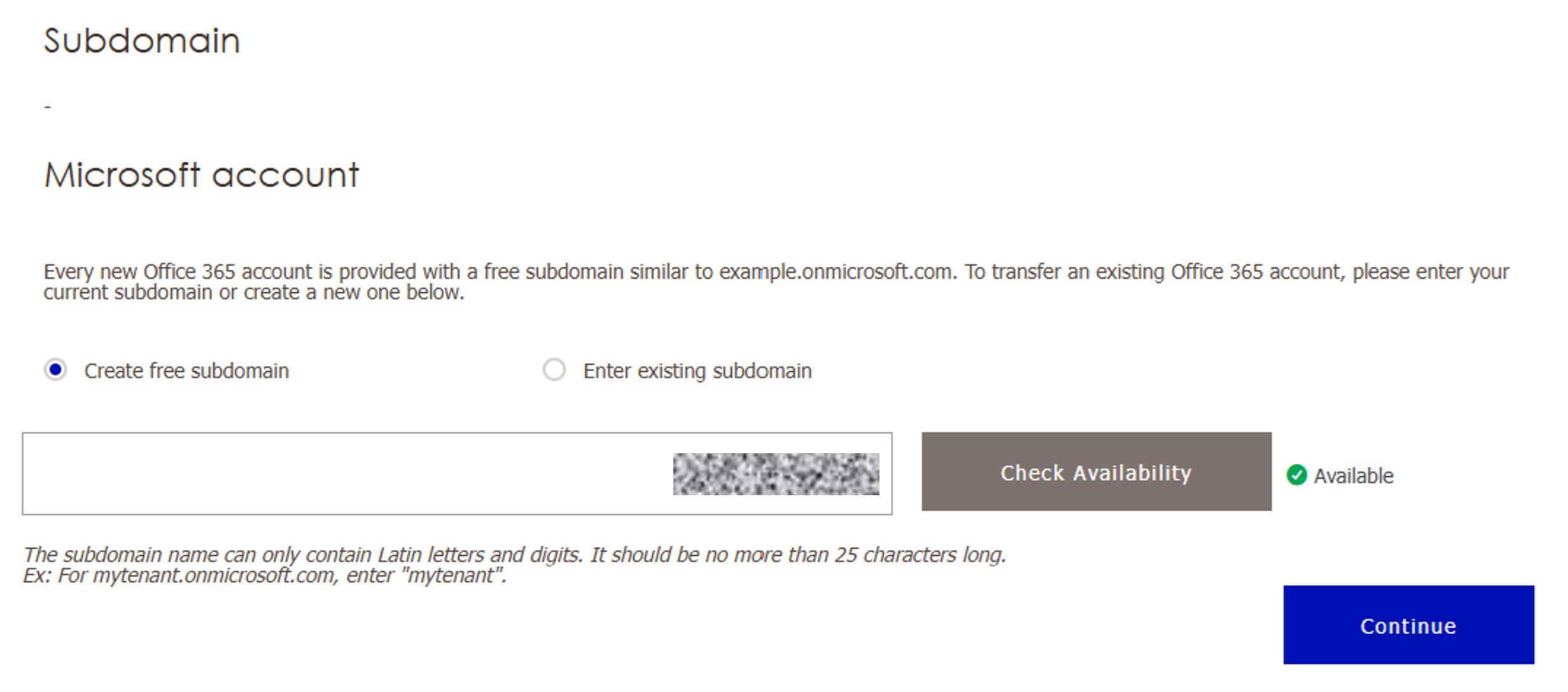
Enter the subdomain name associated with the customer Tenant ID. Then click “Check Availability” to process the API call to Microsoft in order to validate the subdomain.
Once validated the “Continue” button will activate and you can proceed to enter the customer address.
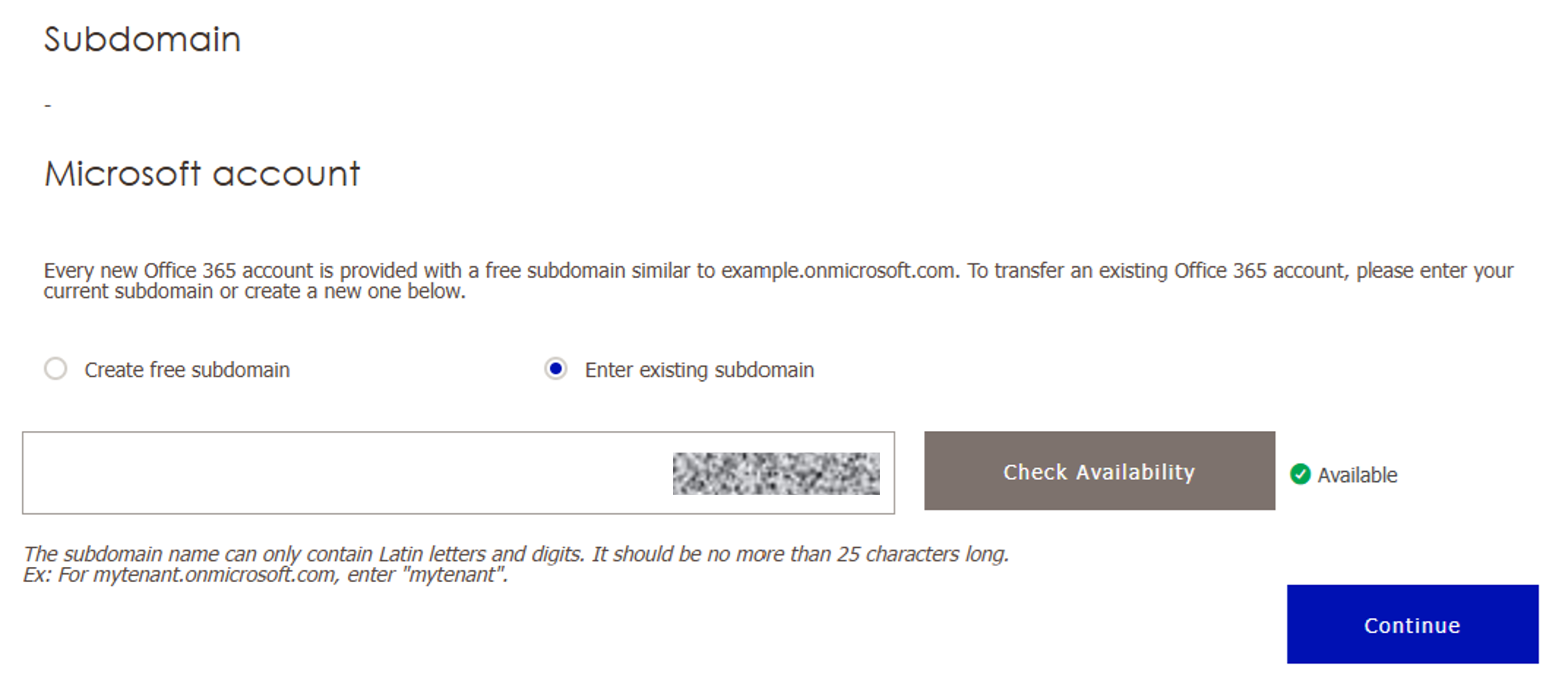
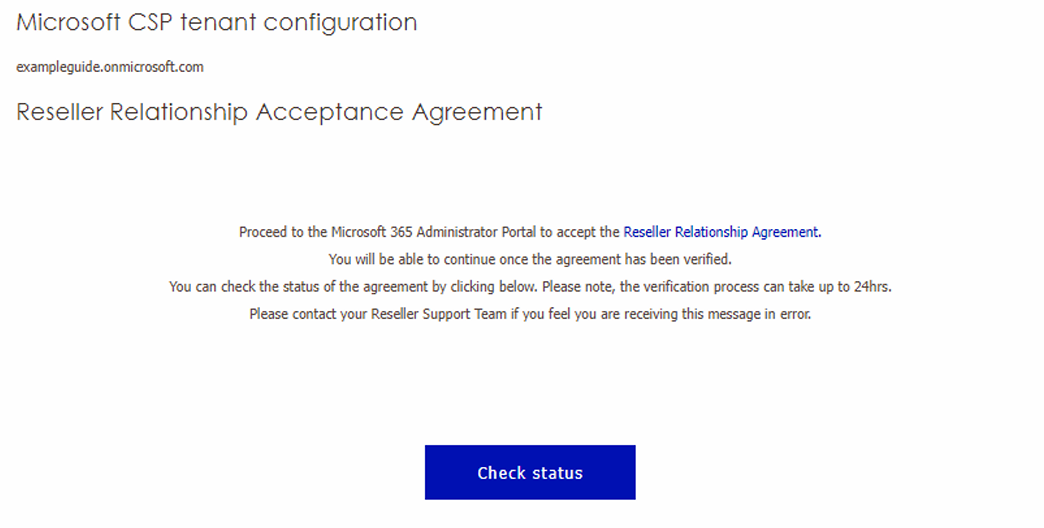
For existing end-customer tenants, the Global Admin (or you on their behalf) will need to log into the Microsoft Partner Center and accept the Reseller Relationship request.
- Create and link a new Microsoft tenant:
Enter the desired subdomain to be used by the customer tenant, then click “Check Availability”. This will make an API call to Microsoft to confirm if the entered subdomain ID is available.
NOTE: Only enter the domain name to be used to check availability. The .onmicrosoft.com extension will be added automatically.
If the subdomain name entered is available select “Continue” to proceed.
If the subdomain name is already in use enter another subdomain name and check for availability again.
Repeat this process until an available subdomain name is identified.
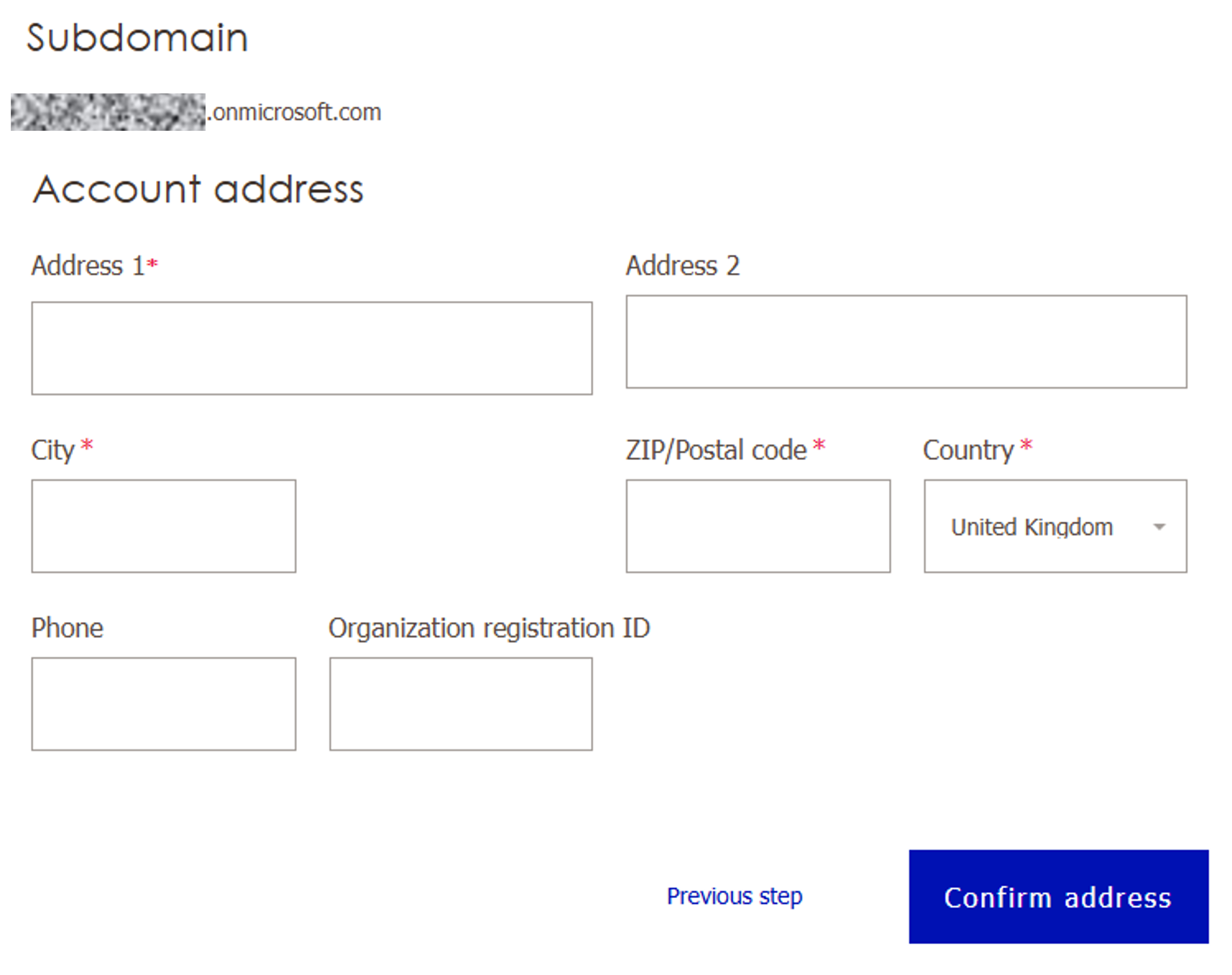
Enter a valid address for the customer and click on “Confirm Address”.
Organizational registration ID” is a Microsoft Partner Center requirement in European countries.
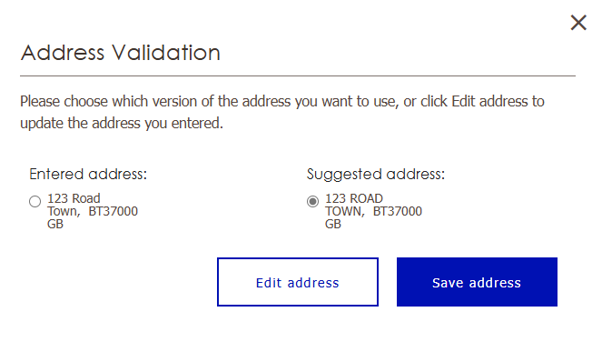
The address validation process may offer recommendations based upon the information entered. Select the correct address and “Save Address”. Select “Edit Address” if changes are needed and then reconfirm.
Upon address confirmation the platform will make the API call to Microsoft in order to create the tenant for your end customer.
This process may take a few minutes depending on processing times.
The Reseller Relationship should associate the new tenant with you as the Reseller automatically. This process is Microsoft dependent and may take some time as Microsoft works through their validation processes.
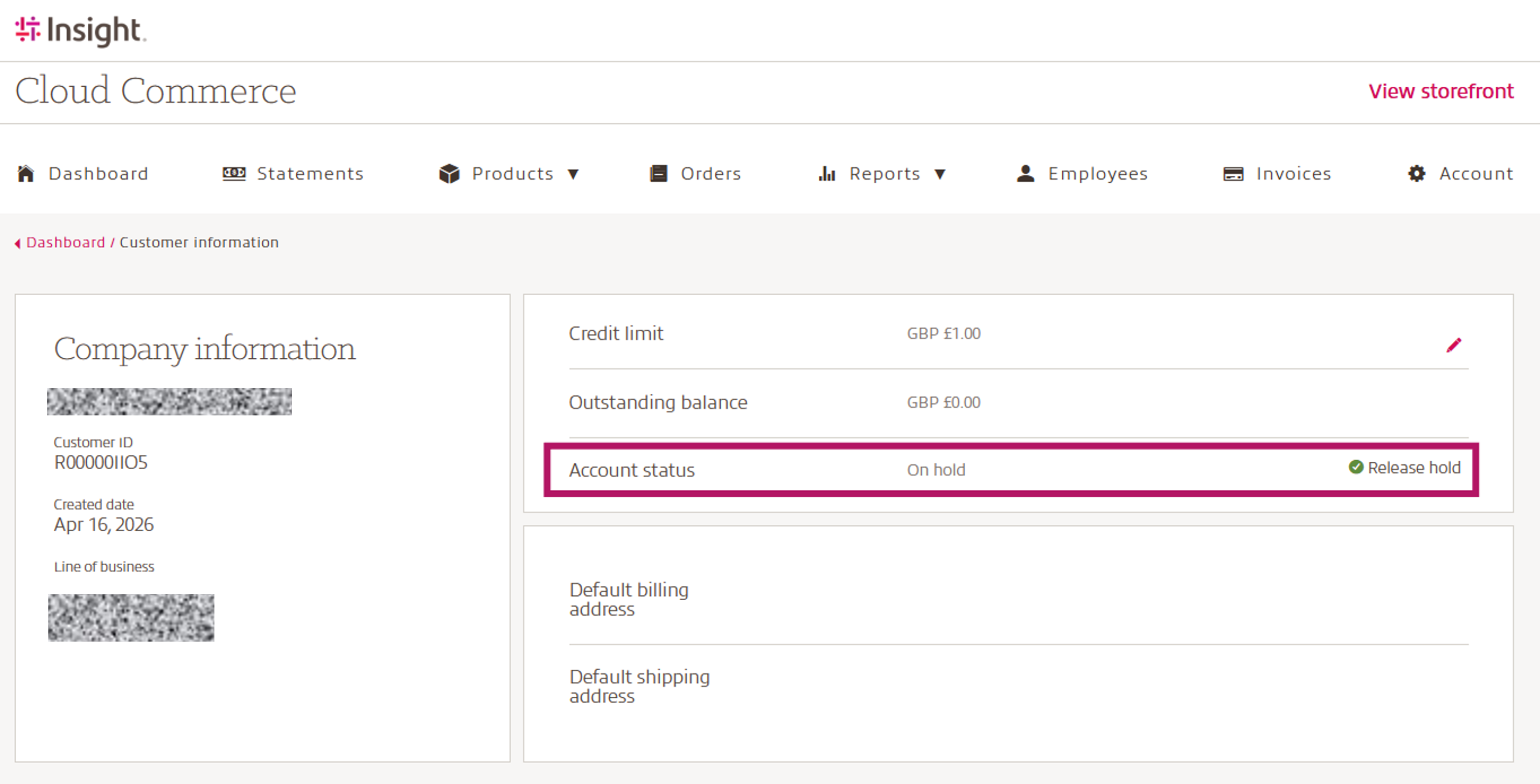
New end-customers are being set to on hold, which will prevent clients from placing orders.
To release them select the Customer ID for the account you want to update on the dashboard:
If you need to request a change after the account was created, please contact your Insight Client Success Manager.