Insight’s Reseller Admin Portal (RAP)
User Guide
8 – Employees Page
Employees Page
When you log into RAP, you will land on the Dashboard page. Use the top menu to navigate to the Employees page.
This is the main page from which you will be able to view and manage your RAP administrators.
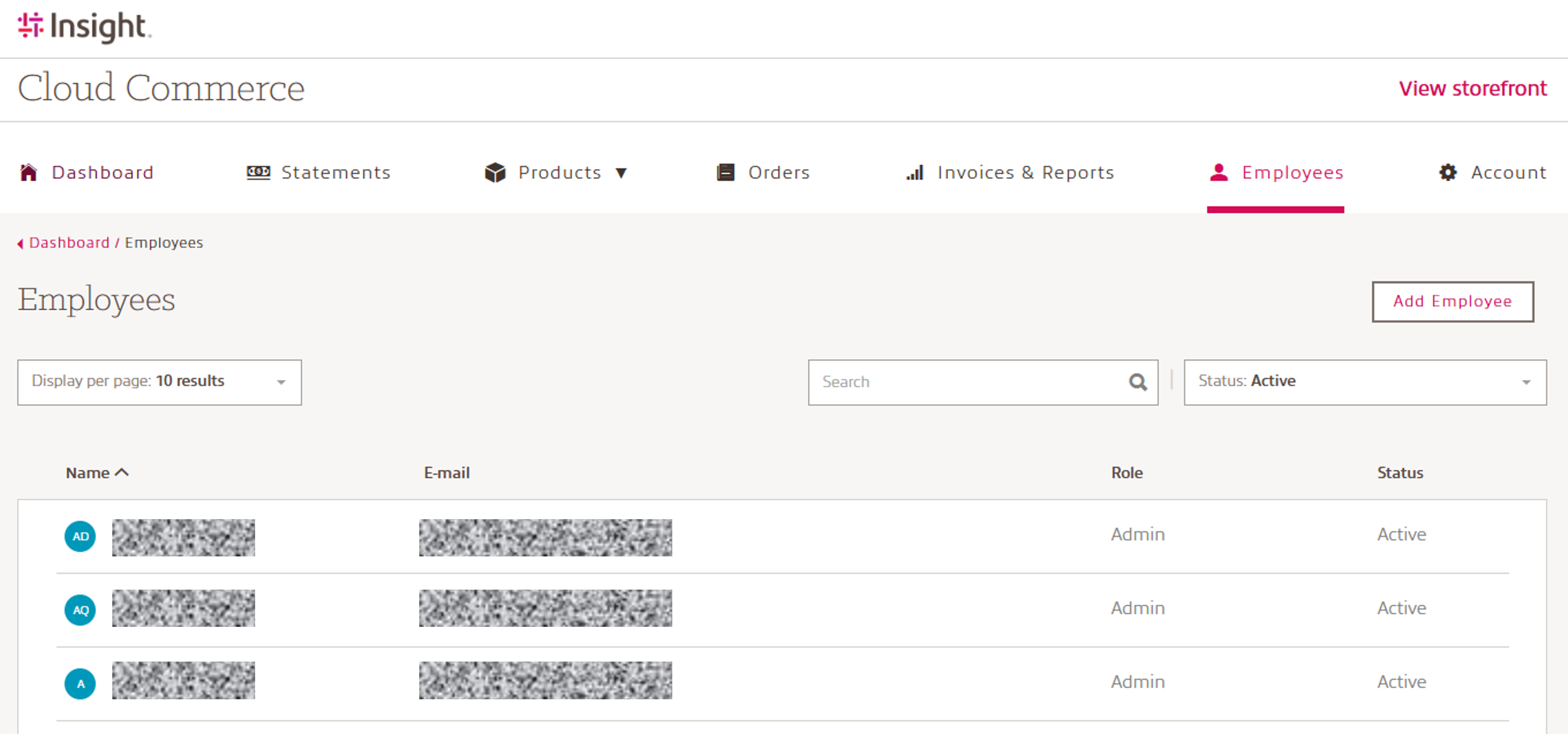
The information shared includes Name, Email, Role and Status.
Adding a New Employee User:
To create a new user, click Add Employee, fill in the required fields, and select the appropriate Admin role.
Admin roles - Full access to RAP functionality with the ability to:
- View all information on the platform
- Order new product(s) and subscriptions
- Manage existing subscriptions including upgrades, renewals, payment method, etc.
- Manage admins & finance admins
- Access invoices and reporting
Finance Admin role - provides a more restricted level of access to RAP:
- CAN: view or update payment information & PO details, view and download invoices and reporting
- CANNOT: submit orders, manage subscriptions, or manage admin access
Deactivating a User:
Please note: Users can only be de-activated, not deleted.
To de-activate an existing user, select the user in the admin list and click the Deactivate employee button as per the below:
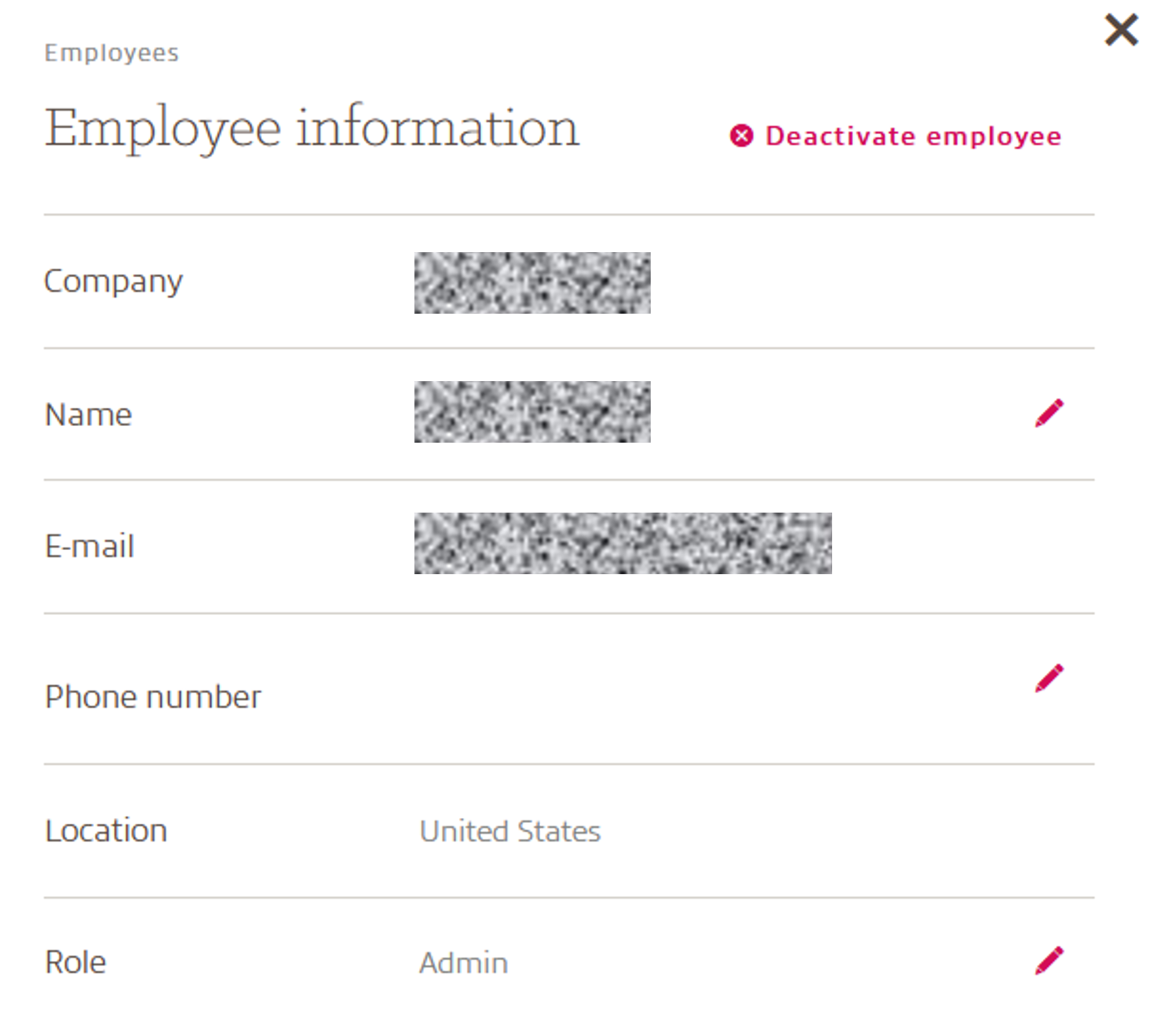
Once the user has been de-activate, the status will change to “Inactive”.
