Insight’s Reseller Admin Portal (RAP)
User Guide
5-1 – Manage Product Pricing
Manage your CSP Product Pricing
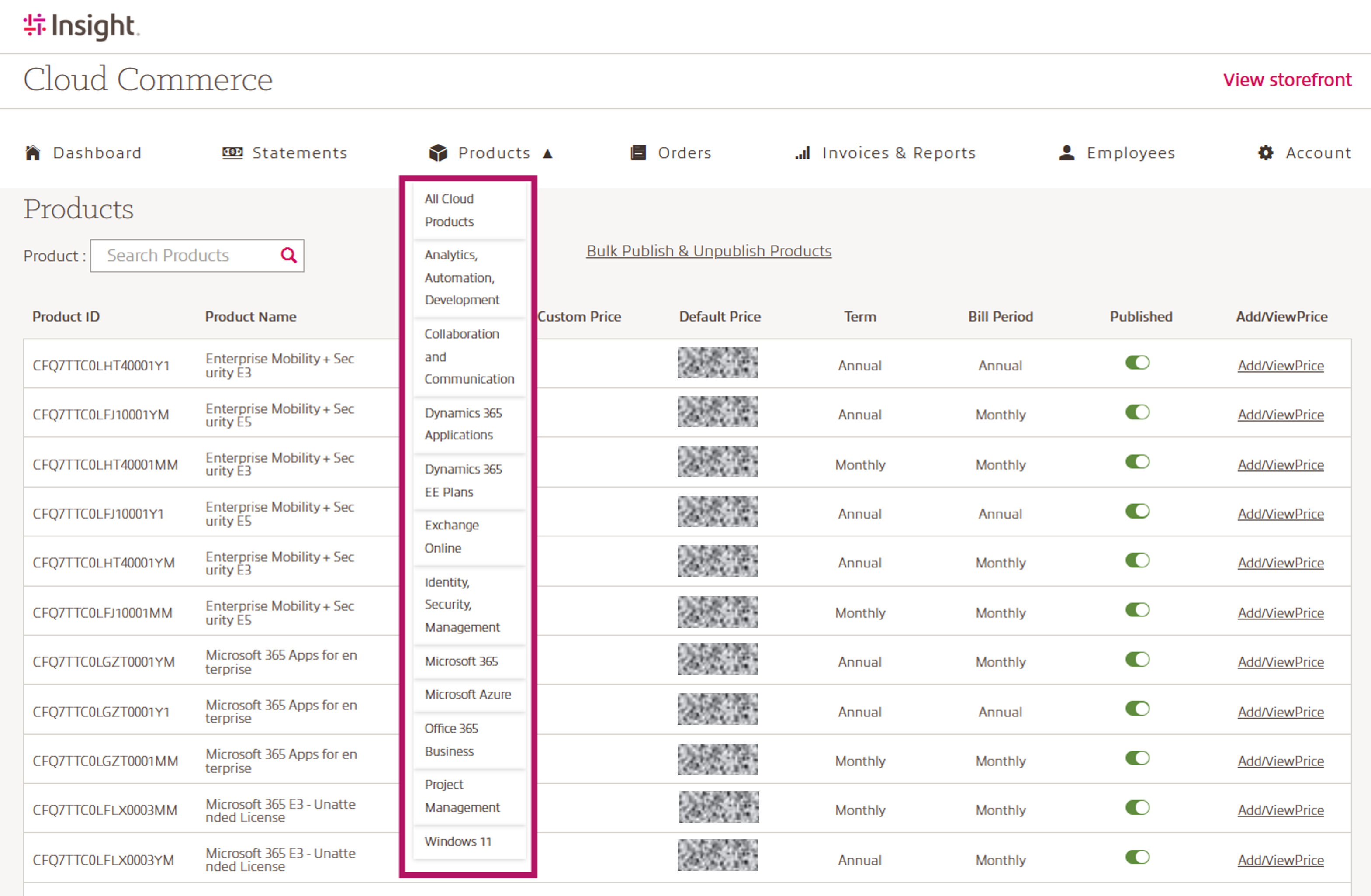
When you log into RAP, you will land on the Dashboard page. Use the top menu to navigate to the Products page.
The Cloud Products page in the Reseller Administration Portal (RAP) provides resellers with a centralized catalog view of available cloud products that can be managed and published for their end customers.
How to manage product pricing?
The Global Product catalog is updated monthly to reflect changes made by the publisher. Products are added, removed, or modified regularly. The catalog provided to you as a Reseller includes end-customer pricing at MSRP (Manufacturers Suggested Retail Price).
Within the Products page you can:
- Set Customer specific prices for a given product, or
- Set Default pricing of a product for all customers
The Products section of the RAP offers the ability to:
- Review Products by category
- Review default & custom cost, price, and effective dates
- Publish, or remove products from the catalog view of your customers
- Create & Edit cost, price, and effective dates
- Set Default price for all customers
- Set customer specific pricing
Review Product pricing:
From the RAB Dashboard, select Products from the navigation bar to display all products available.
By selecting a product category (example: Microsoft 365) you can view all products within that product category.
On the Products page, you will be able to search for individual products and review the following items:
- Product ID
- Product Name
- Current cost: The current cost price is the actual reseller cost price for the given product for the current month
- Custom Price: Custom price represents customized default pricing you have set for all customers. Customer specific pricing is set and viewed in the “Add/ViewPrice” window.
- Default Price: The default price is the end-customer default pricing and is set to Microsoft’s MSRP (Manufacturers Suggested Retail Price). Changes to the default price will be applied to the entire customer catalog for all customers, unless a custom price has been defined for a given customer.
- Term: Subscription term of the listed product (Triennial – Annual – Monthly)
- Bill Period: Billing frequency of the listed products (Upfront – Annual – Monthly)
- Published: As an Insight Reseller you have the option to determine what products are published to your end-customers. Use this toggle button to determine whether products are published to the end customers or not.
Green = Published
Red = Hide the product from your end-customer catalog
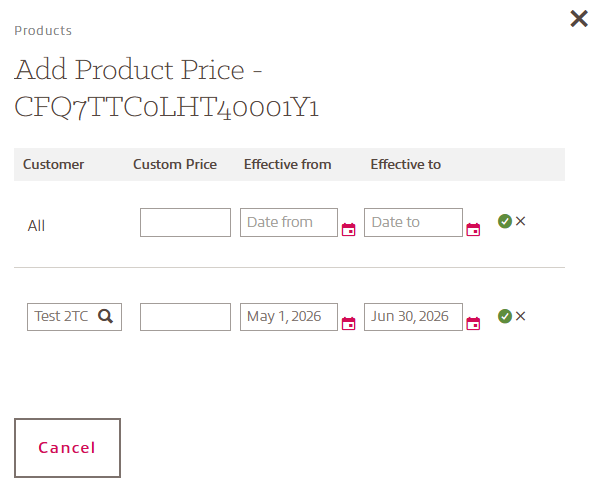
Unpublishing a product will not impact customers with existing purchases of this product.End-customers will continue to have the ability to manage existing subscriptions for this product until it expires. Unpublishing will remove the product from the catalog and not allow any new, or additional purchases of this product. - Add/View Price: Add a custom price for either all end-customers, or one or more dedicated end-customers, including the effective from and to date.