Insight's Cloud Commerce Platform (CCx) User Guide
13-1 - Microsoft Upgrades
How to process Microsoft CSP upgrades:
CCx is your platform to get the licenses you need. The following details provide instructions on how to use the Upgrade functionality within CCx.
Within the New Commerce Experience (NCE), Microsoft introduced the ability to upgrade Microsoft 365 seat-based licenses. This functionality was not previously available in legacy CSP. Upgrades allow an immediate move from one offer to another eligible offer before the renewal date of the initial subscription (mid-term).
Microsoft does not allow the ability to simply go from one offer to any other one, rather you need to choose from a list of eligible upgrades that are allowed by Microsoft.
Lastly, Microsoft does not allow you to upgrade a subscription through Insight if the initial subscription was purchased through another partner.
On the Subscription detail page, you will see a link on the left called Upgrade. Clicking this button will show you options upgrades allowed by Microsoft.
Plese note: To request an upgrade, Microsoft requires an up to date acceptance of the Microsoft Customer Agreement (MCA).
In case your MCA must be updated, please follow the instructions within CCx, or visit the MCA section within the Account tab - Microsoft.
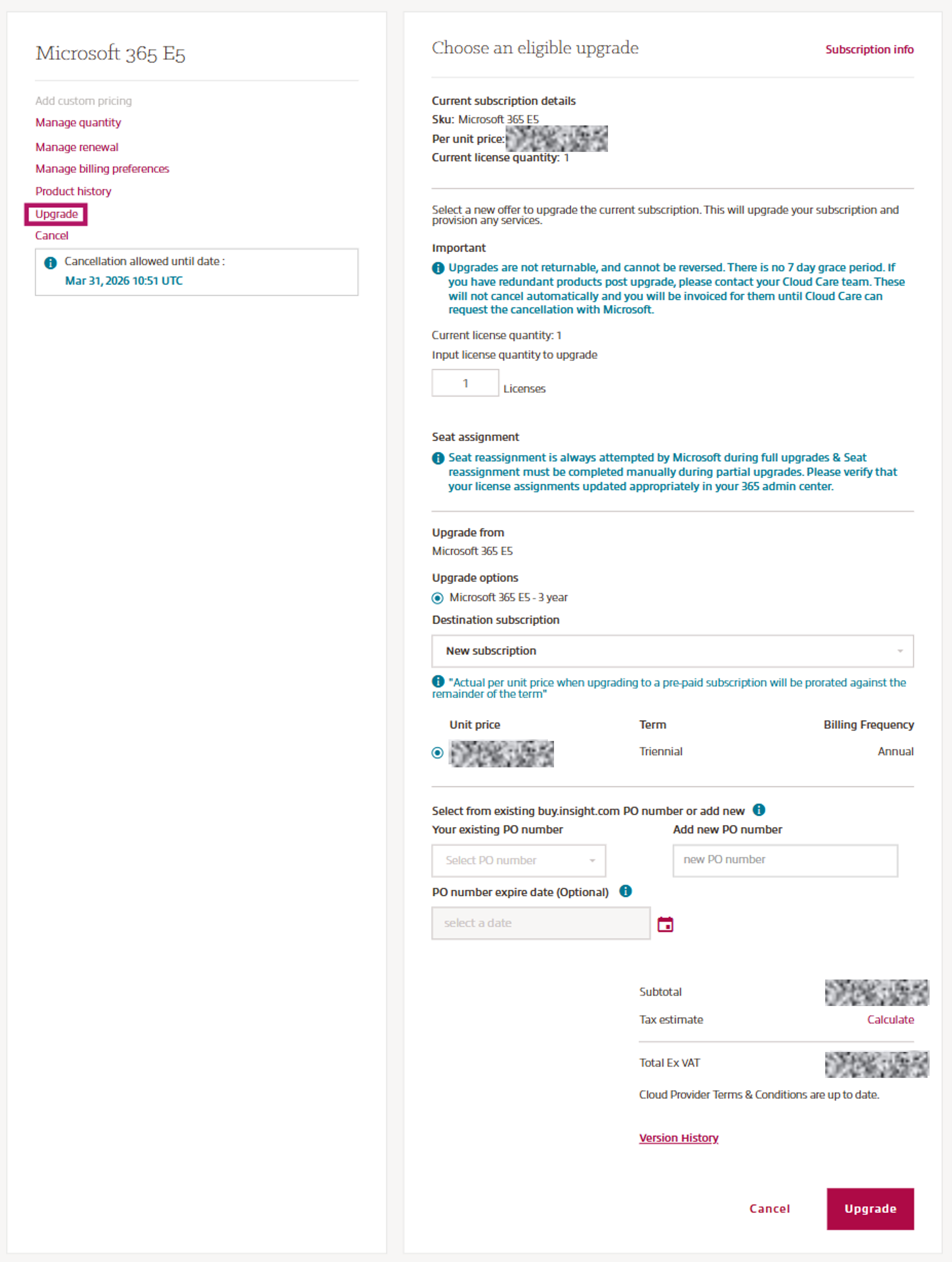
The top section will display the current subscription product, per unit pricing, and license quantity.
First, enter the number of licenses you would like to upgrade & click Update to view available options. This will present a spinner, while a call is made to Microsoft to bring back the eligible upgrade options.
Note: Entering the total number of licenses in subscription = FULL upgrade, while entering less than the total number of licenses in subscription = PARTIAL upgrade (A partial upgrade in CSP requires license assignment)
Next, select the product to upgrade to. Eligible upgrade paths are displayed, by Microsoft design.
Then, select destination subscription from the drop down:
- New subscription: Creates a new subscription. Term/End date of subscription and billing frequency will match existing data from the original subscription.
Unit pricing will be displayed below drop-down box. Actual per unit price when upgrading will be prorated against the remainder of the term, using the established billing frequency. Promotions will be added if applicable. - Existing subscription: If you have an existing subscription(s) for a product, that is deemed an eligible destination path, they will be displayed here (identifiable by the Microsoft Vendor Subscription ID from the Subscription detail page).
Upgrades to an existing subscription will take the term/billing frequency and unit price of the destination subscription.
Unit pricing will be displayed below drop-down box. Actual per unit price when upgrading will be prorated against the remainder of the term, using the established billing frequency.
If you don’t see a subscription for an existing product that you think should be an eligible destination path, you can click View ineligible subscription to see any ineligible destination subscriptions and the reason why MSFT has declared them ineligible.
Examples of ineligible destination subscriptions:
- Subscription is not active.
- Subscription is within cancellation window.
- Subscription term duration is shorter than the source subscription’s term duration.
- Subscription term end date is before the source subscription’s term end date.
Upgrades FAQ's:
Q. Once I upgrade my subscription, I will have redundant licensing for some/all my users. How do I cancel those redundant licenses?
Example: I have 10 x O365 E3 and 10 x EMS E3. After upgrading the 10 x O365 E3 to M365 E3, the EMS E3 will be redundant licenses for those 10 users.
A. Please contact your Client Success Manager for assistance. The teammate will need to submit a request to Microsoft for the cancellation. You should make the request immediately after you upgrade to expedite the cancellation process.
Microsoft has established a policy that any requests for cancellation beyond two billing cycles after the initial upgrade will be denied.
Important note: Microsoft will only allow redundant license cancellation for the same number of licenses for the same subscription term length. (i.e., in the upgrade example above, if you had 15 x EMS E3 licenses, only 10 would be deemed redundant post-upgrade.)
Q. How does license reassignment work when upgrading licenses to a different product?
A. As seen in the CCx Upgrade screen, during a partial upgrade, manual license reassignment is required. Microsoft will not attempt any license reassignment to your users. In a full upgrade, Microsoft will "attempt" to reassign all users. We have seen in some cases this attempt has failed, so it is important to verify that license reassignment has successfully occurred after the upgrade was completed.
Q. Is there any interruption of service to our users during license reassignment after an upgrade?
A. Microsoft has confirmed that when you complete a partial upgrade OR a full upgrade (where the Microsoft attempt to reassign fails), you will have 30 days of grace (after the partial upgrade operation is done) to move/reassign your users from the source SKU to the upgraded SKU.
There is no service interruption during this period.
Please note billing for the upgraded seats begins as soon as the partial upgrade operation is completed, billing does not wait for the users to be reassigned to the upgraded SKU.