Granular Delegated Admin Privileges (GDAP) - Direct User Guide
Microsoft's Granular Delegated Admin Privileges (GDAP) - secure, time‑limited, and role‑based partner access to your Microsoft environment
When you purchase Microsoft Cloud Services through a Microsoft Cloud Solution Provider (CSP) like Insight, Microsoft uses Granular Delegated Admin Privileges (GDAP) to control how your partner can access and support your environment. GDAP provides more security, transparency, and control than the previous delegated admin (DAP) model.
What is GDAP?
GDAP lets you grant your CSP partner only the specific permissions they need to support your Microsoft 365 and Azure services. Instead of broad Global Admin access, GDAP applies the principle of least privilege, with access granted only for selected roles and for a defined time period.
Why Microsoft requires GDAP?
Microsoft introduced GDAP to align with modern security standards, zero trust principles and regulatory and compliance requirements GDAP is now the standard and required administrative model for all CSP partners.
What GDAP means for you as a customer:
More security:
- Partners receive role-based,time limited access, not permanent permissions.
- No standing Global Admin (DAP) access.
- Reduced risk of unauthorized or excessive permissions.
Greater transparency - You can clearly see:
- Which roles have been assigned
- What level of access your CSP partner has
- When the access expires
- Full audit logs of partner access
No impact on your services - GDAP affects administrative access only.
There are no changes to:
- Your pricing
- Your subscriptions
- Your contract terms
How GDAP works in your partnership with Insight:
When you log in to Insight’s Cloud Commerce Platform (CCx) for the first time, a GDAP Relationship landing page will appear. This page guides you through the available GDAP options and explains the advantages and limitations of each level.
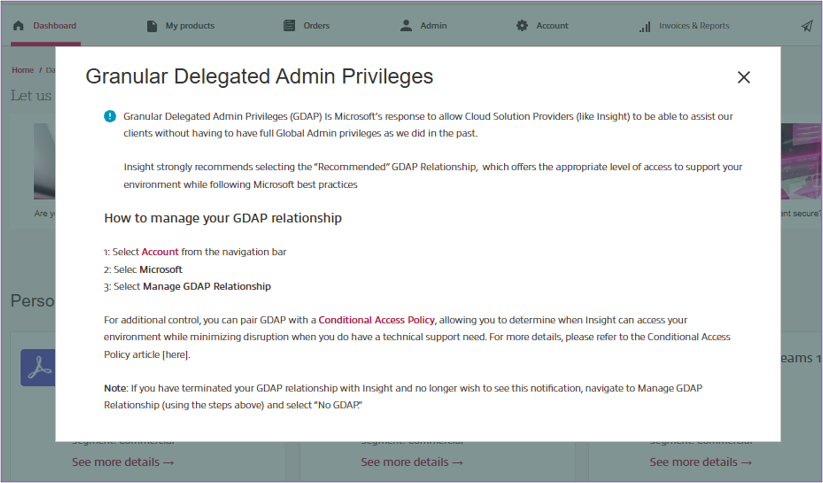
You’ll also find links to Microsoft documentation explaining the roles Insight is requesting.
The four GDAP options you can choose from are:
1. Recommended – Best Technical Support Experience
- Read only access to tenant details
- No access to files, data, or proprietary information
- Allows Insight to:
Engage Microsoft on your behalf for compliance matters
Create support tickets
Assign administrators
Reset passwords
Resolve common Modern Work issues
2. Basic – Reduced Technical Support Experience
- Same as “Recommended,” but with reduced ability for Insight to fix certain issues
- No access to files, data, or proprietary information
3. Limited – Limited Technical Support Experience
- Read only tenant access
- Allows Insight to create support tickets only
- No ability to perform administrative tasks, assign roles, or reset passwords
4 . No GDAP Relationship – No Support Capability
- Insight cannot provide technical support without an active GDAP relationship
- Creating a new relationship can take up to 24 hours, potentially delaying support.
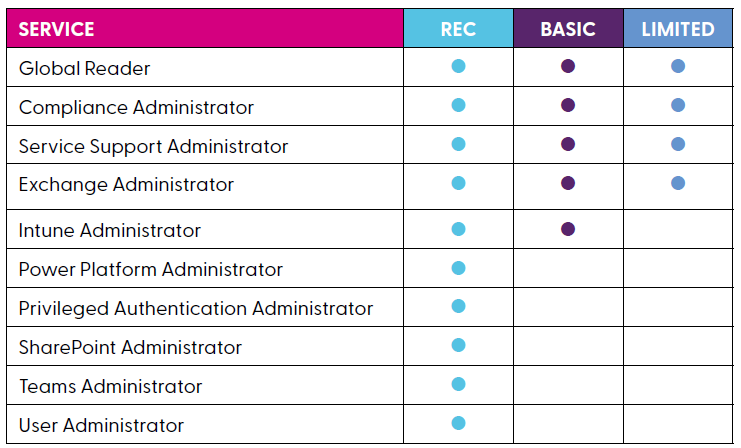
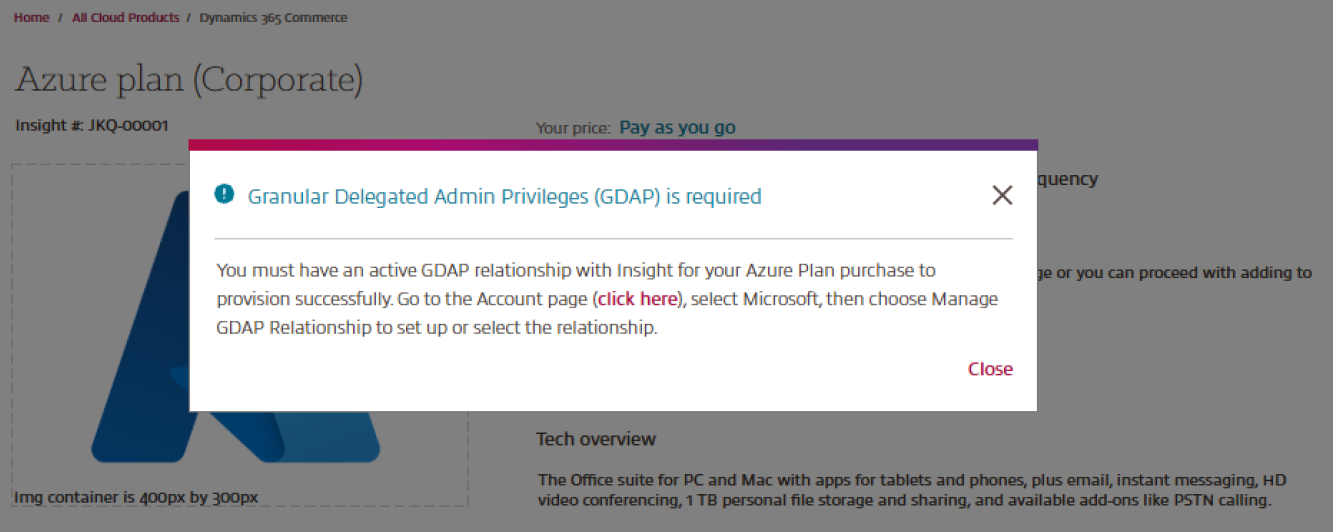
Please note: To purchase an Azure Plan, a Recommended, Basic, or Limited GDAP relationship is required so that Insight can complete the necessary setup activities.
If none of these GDAP relationships are in place, CCx will display an error message (see screenshot) prompting clients to establish one of the three required GDAP relationships before an Azure Plan can be purchased.
More information on each individual role can be found in the Microsoft GDAP Role Guide.
For existing customers, we now have direct self-service access to view and manage their GDAP Relationship from within the Microsoft workspace on their Account page at any time.
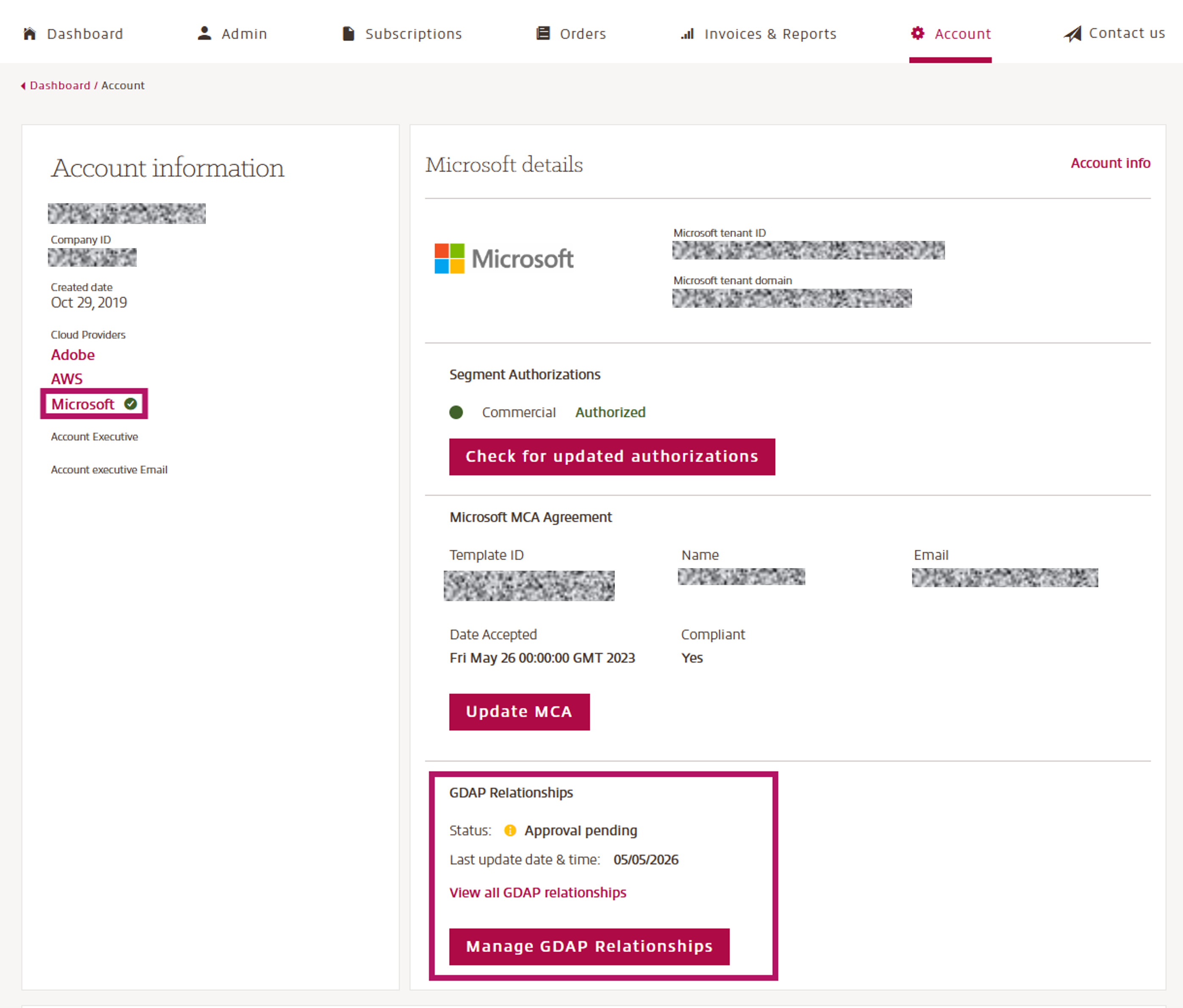
Upon selecting "Manage GDAP Relationship," customers are presented with Insight's defined GDAP options, each accompanied by clear informational messaging to help customers understand what each option means for their account and administrative access.
This guided selection experience ensures customers can make informed decisions about their GDAP configuration without requiring support intervention. Additionally, customers can now view their current GDAP status at any time by selecting the "View GDAP Relationships" button, providing real-time visibility into the state of their Microsoft administrative relationship with Insight, including the assigned GDAP roles.
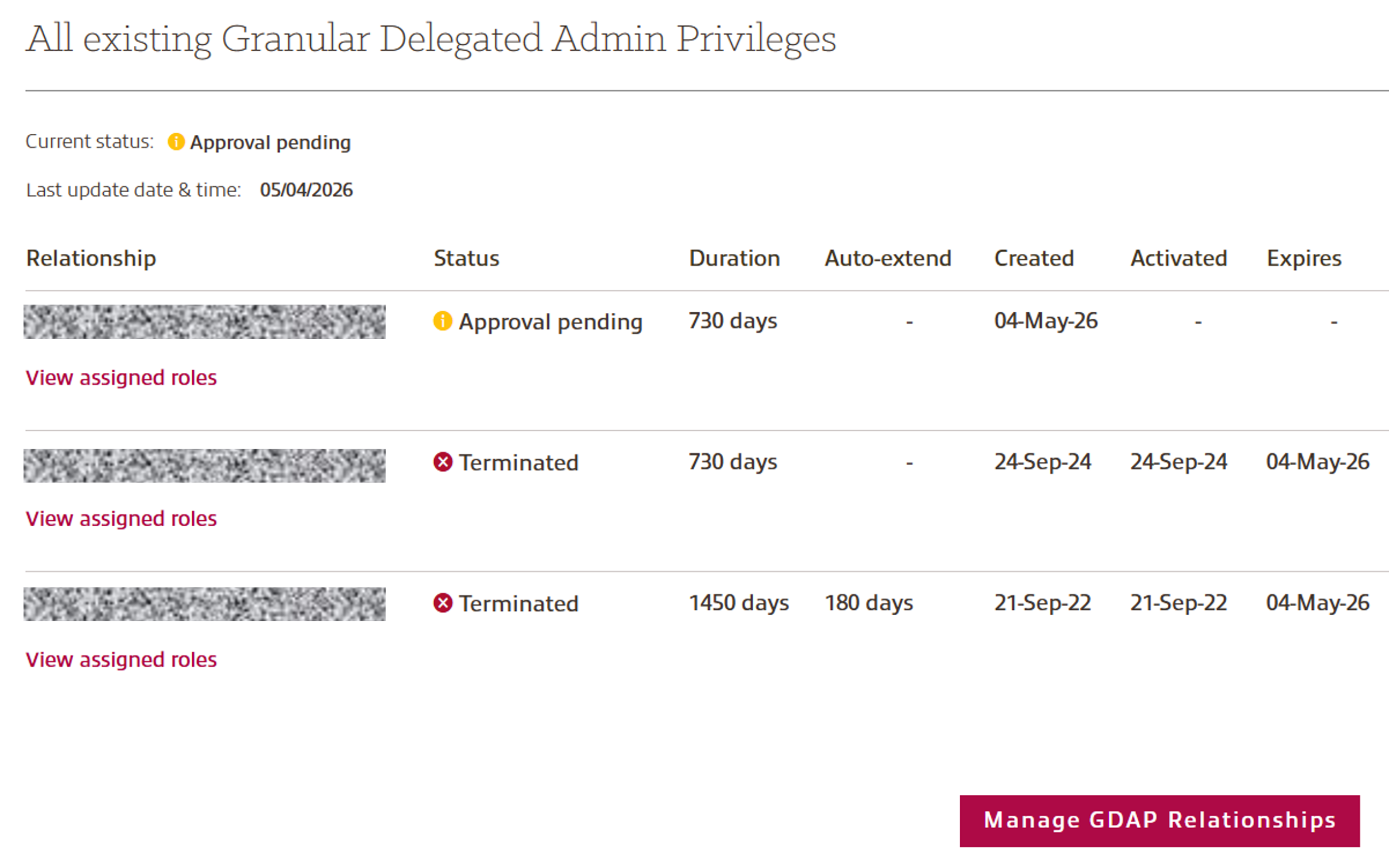
When a customer selects a new GDAP relationship, the system now automatically terminates the existing GDAP relationship before establishing the new one, ensuring there are no overlapping or conflicting relationships active at any given time.
Next Steps:
After selecting an option, the GDAP request is sent to you for approval. Please log in to the Microsoft Admin Portal with Global Administrator credentials to approve and complete the setup.
Additional Information:
- Access is granted only for the roles you approve and for a limited timeframe (renewal required).
- You can revoke or change access at any time.
- Your CSP partner cannot exceed the permissions you have granted.
- You remain the owner of your Microsoft tenant.
- You keep full administrative control and can manage your own admins at all times.
- Existing user permissions are not affected.
Conditional Access Policy:
We recommend that customers who have stricter security or access requirements use Conditional Access policies to manage and limit Insight’s administrative access. This approach is considered a best practice, regardless of how you purchase your Microsoft services.
One effective method is to block all Guest User access to cloud apps by default. You can then simply create exclusions for your Microsoft tenant, specific directory roles or selected cloud apps.
This ensures that only the necessary access for Insight is allowed, without impacting other Guest Users you rely on.
More information on Conditional Access can be found in the Microsoft Entra Conditional Access documentation.
In summary:
GDAP increases security and visibility while still enabling your CSP partner to support you effectively. You stay fully in control, and your partner receives only the access needed—no more, no less.
If you require support, please raise a support ticket here.
Your Insight Customer Success Manager is available to support you throughout the entire process.